🚀 Elevate your office game with color laser speed and smart wireless power!
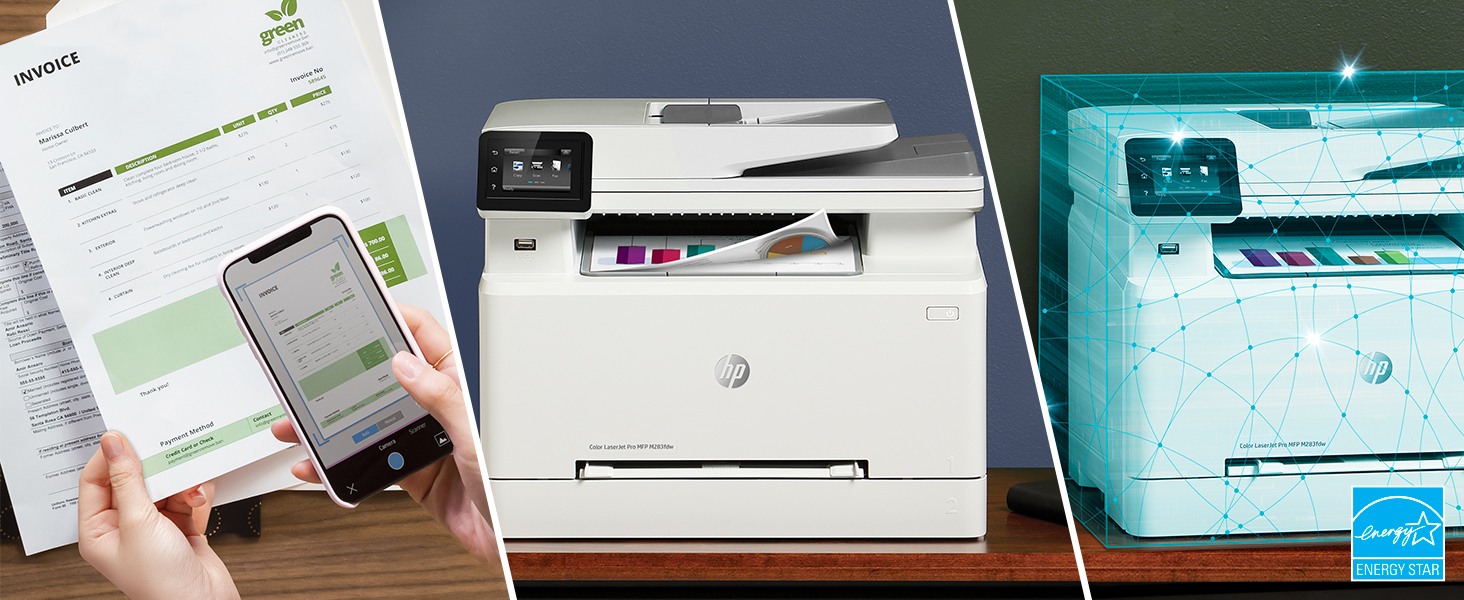
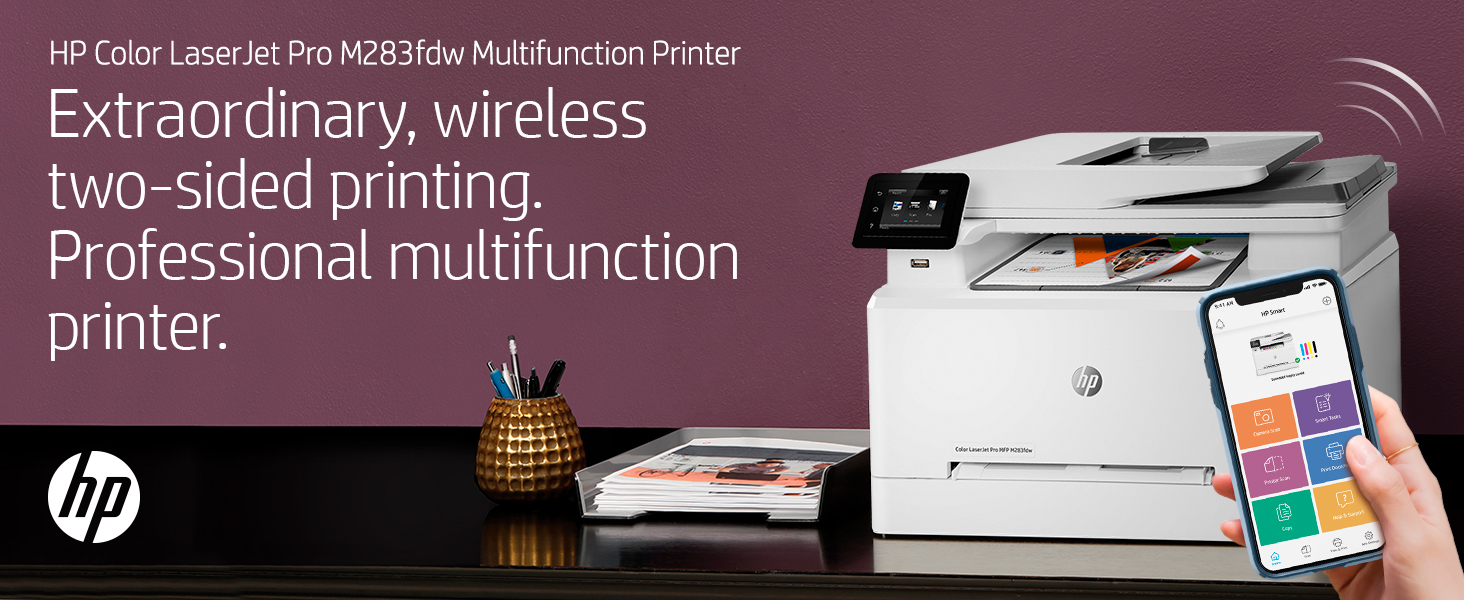
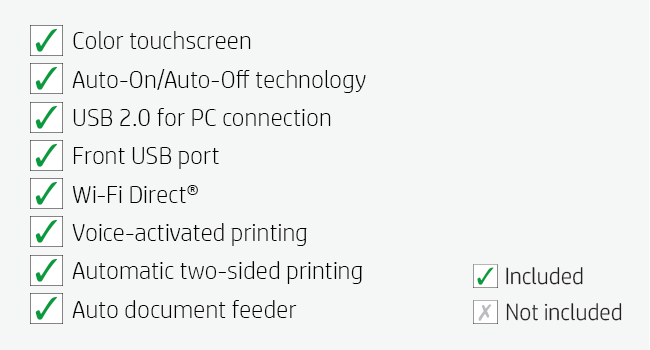
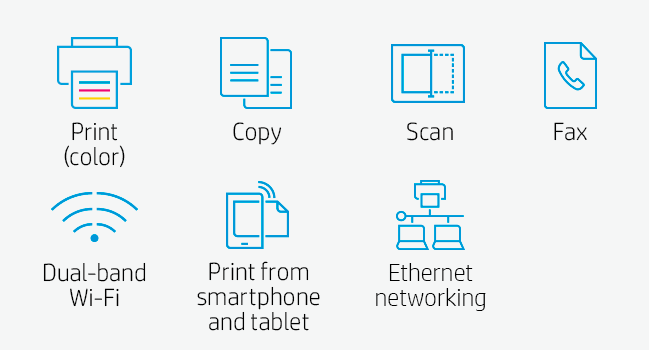
The HP Color LaserJet Pro M283fdw is a wireless all-in-one laser printer designed for busy professionals who demand speed, quality, and versatility. It delivers fast color and black & white prints at up to 22 ppm, features a 2.7" color touchscreen, automatic duplex printing, and a 50-page document feeder. With HP Smart app integration, users can print, scan, and manage tasks remotely, boosting productivity by 50%. Dual-band Wi-Fi ensures reliable connectivity, while built-in security safeguards your data. Ideal for home offices and small businesses seeking professional-grade performance with seamless mobile and voice control.


| ASIN | B083ZYLGGR |
| Additional Printer Functions | Copy, Fax, Scan |
| B&W Pages per Minute | 22 ppm |
| Best Sellers Rank | #49,117 in Office Products ( See Top 100 in Office Products ) #65 in Laser Computer Printers |
| Brand | HP |
| Built-In Media | HP Color LaserJet Pro MFP M283fdw; HP LaserJet Black Introductory toner cartridge (~800 page yield); HP LaserJet Cyan Introductory toner cartridge; HP LaserJet Magenta Introductory toner cartridge; HP LaserJet Yellow Introductory toner cartridge (~700 color composite C/Y/M page yield) Installation guide; Power cord; USB cable; Phone Cord |
| Color | White |
| Color Depth | 24 bpp |
| Color Pages per Minute | 22 ppm |
| Compatible Devices | PC, Smartphones |
| Connectivity Technology | Wi-Fi, wired |
| Control Method | Remote, Voice |
| Controller Type | Amazon Alexa, Vera |
| Customer Reviews | 4.2 out of 5 stars 4,531 Reviews |
| Dual-sided printing | Yes |
| Duplex | Automatic |
| Global Trade Identification Number | 00193905486694 |
| Hardware Interface | Ethernet, USB 2.0 |
| Ink Color | Black, Cyan, Magenta, Yellow |
| Item Dimensions D x W x H | 16.5"D x 16.6"W x 13.2"H |
| Item Height | 13.2 inches |
| Item Type Name | Laser Printer |
| Item Weight | 18.7 Kilograms |
| Manufacturer | HP |
| Maximum Copy Resolution Black and White | 600 dpi |
| Maximum Copy Resolution Color | 600 x 600 dpi |
| Maximum Copy Speed Black and White | 22 ppm |
| Maximum Print Resolution Black and White | 600 x 600 Dots Per Inch |
| Maximum Sheet Capacity | 250 |
| Maximum print Resolution Color | 600 x 600 dpi |
| Media Size Maximum | 8.5 x 14 inch |
| Model Name | LJP M283fdw |
| Model Number | 7KW75A#BGJ |
| Model Series | 283 |
| Number of Trays | 1 |
| Other Special Features of the Product | Auto-Duplex, Auto-Duplex, CD-Printing, Portable, Cloud Print Enabled, Network-Ready, Optional HP High Yield Replacement Cartridges |
| Paper Size | 4 x 6 to 8.5 x 14 |
| Power Consumption | 361 Watts |
| Print media | Paper (plain) |
| Printer Connectivity Type | Wi-Fi, wired |
| Printer Output Type | Color |
| Printer Type | Laser |
| Printing Technology | Laser |
| Resolution | 600 x 600 |
| Scanner Type | Sheetfed |
| Series Number | 283 |
| Special Feature | Auto-Duplex, Auto-Duplex, CD-Printing, Portable, Cloud Print Enabled, Network-Ready, Optional HP High Yield Replacement Cartridges Special Feature Auto-Duplex, Auto-Duplex, CD-Printing, Portable, Cloud Print Enabled, Network-Ready, Optional HP High Yield Replacement Cartridges See more |
| Total Usb Ports | 1 |
| UPC | 193905486694 |
| Unit Count | 1.0 Count |
| Warranty Description | One year limited warranty |
| Warranty Type | limited warranty |
| Wattage | 7 KW |
K**K
It’s not a long term investment, it’s right now Nirvana
Are you tired of your ink cartridges drying out, especially when you have not printed much yet? And if you are being forced to use cartridges manufactured by the company that built your printer, you may feel that your printer company sees you as a sex object. I had gone from thinking I was being screwed, to knowing it. I know that the cartridges still had plenty of ink in them when my printer stopped working for ink depletion. Laxer jets have a higher purchase cost, but they can sit there forever between jobs, and mine has never experienced ink too dry, inability to print while there was any toner left, and I bought a reconditioned unit that was remanufactured, and tested for an insanely good deal, built before they required ink with a smart chip, and shipped with the toner used to test for quality control after remanufacture. Easy set up, seems to handle all I need as far as paper size and quality, fast spool up, and high print volume while keeping print quality high. I don’t use mine professionally, but I have no problem suggesting that whoever you are, you should really give a lazer printer a shot next time, you can find room for it. The cost of replacing the toner can be high for some newer machines, and I have heard that expense can come quickly enough when the toner that came with it runs out, but I have not heard that but once, and if you are not a pro, you can certainly avoid that issue by reading the reviews like I did. Support was also excellent and responsive.
J**W
A very solid color laser that does what is says and without hassle
I really like this color laser. It was easy to install and configure. I was up and running in approximately an hour. My only real issue was that the scanner defaulted to WIA when TWAIN is what my File Center software uses. Not a problem. This color laser supports both and HP had the driver I needed. Jut went out to their well organized support site and there it was. Printing from my iPhone and iPad was easy. As this is replacing an old Brother that didn’t have that capability, this is a big step up for me. I’m not getting rid of the Brother as it still works well, but it will mainly do black&white from here on. The print image is sharp. I needed to print some landscape designs that were made for large format printing and I easily read all but the smallest detail. For the super small detail, with the help of a magnifying glass, that print info was also very sharp. Maybe if I had my eyes from 40 years ago I could have seen it. The printer is quiet. In a room full of equipment that is important. Probably my only critique is removing printed pages. The holding surface needs a little dip to make it easier for those of us with sausage fingers. I got used to it quick enough but would have liked a little dip in the surface to make it easier. The printer comes with very old software and I tested both the wireless printing as well as the email to the printer option. As always, HP has a bunch of available forms and crafts. With land line phones almost obsolete, the mobile fax option is important. For me, it is important only one time per year. Overall this a a very solid color laser for home office use.
D**R
I set up this printer in a few minutes and it worked perfectly - Awesome!
So I did some research and this HP Color LaserJet Pro looked nice and compact, it had some good reviews, and the price was right. I checked it out on some YouTube videos for setup and replacing toner cartridges and everything was so simple to do. I only use Macs and the Color LaserJet Pro was supposedly compatible with macOS. So, I took the printer out of the box, ran the initial setup, checked the toner cartridges, put in some paper, ran the print demo, connected to my 2.4 GHz WiFi Network, and printed a one-page PDF file from my 2015 MacBook Pro in another room. I didn't need to install any HP drivers or anything else. The printer was instantly recognized on my network and was ready to go after a minute or so of initialization. Now the LaserJet Pro connects and prints instantly whenever I turn it on. I have to say this printer puts out some beautiful print and it will likely be the last printer I will ever need. I was blown away by the color-print demo. I don't know why I waited so long to buy a decent laser printer. I don't think this printer is expensive at all and as long as the toner cartridges stay working, I don't mind paying the price of genuine HP toner cartridges. It will probably take me years to use up the toner in those cartridges and I even bought a spare black toner cartridge just in case. I am honestly pleased with this Color LaserJet Pro and I highly recommend it for basic print jobs. Printing from my Mac running Mojave OS was a breeze. I don't think printing gets any easier than this. I'm going to play around with it a bit, such as printing from my smartphone or my other Macs. I basically use my MacBook Pro laptop daily to do everything, so that's all I need to print from. I really didn't need a color laser printer, but now I have one if I ever need to print something in color. For me, it's totally worth it if I'm going to use it for years. The printer came in handy right away, as I need to return a corrupted PNY SSD to Amazon, so I printed the return shipment code to give to the UPS store. I had to give this printer a 5-star rating. I don't see any cons for the short-term. If it keeps on working as it is, then it's perfect. I bought this Color LaserJet Pro as a replacement printer for some older crappy, multi-function HP Color-Jet printer I had been using over the past few years. I rarely print anything, so on occasion (every few months), whenever I needed to print or copy something important, the ink-jet cartridge was either partially clogged or dried out. That's even after I removed the ink-jet cartridges, used the nozzle cover, and placed them in plastic ZipLoc bags. It drove me bonkers and so I decided to trash that freaking ink-jet printer. No more ink-jets for me. I wasn't trying to save money. It's just that I rarely printed documents and didn't realize there was a problem with those crappy ink-jet cartridges always getting clogged no matter how carefully I treated them. My advice is... Stay away from ink-jet printers for document printing unless you're going to use them every day.
B**T
Absolute junk, and I bought 2 of these worthless piles (over 4 years of updates, still garbage)
Had a couple of older Brother all-in-one machines that did a pretty good job for me at home and at my shop. Wanted to upgrade to machines with a scanner feed, so went this direction based on reviews. Now, I'm not a network engineer, and not an IT pro, but I've had no problems setting up both work and home networks and maintained them for years. At the shop I typically have 15 devices on, and at home between 30-40 depending on day and time. All devices happy, chatting with each other and the outside world, everything just works. Then comes the printer switch, and my whole world comes crashing down. This has been the most maddening, awful experience, with both printers, that I have had with a network device since WiFi was in its infancy. I truly want to go full Office Space on both of them. Today's incident sealed it. Wife home doing school finals. I'm at my shop. After 2 solid weeks of no problems, no drop-offs, no changes in our infrastructure at all, can't print or scan. Scanning is a must because she has to show work. I get home and despite seeing the printer on our local network using the Eero app, and seeing wife's PC on the same network, both connected to the same Eero, neither can see each other. I literally typed the IP address into the URL field, nope, doesn't exist. Fine, let me find one of those weird printer-only USB cables just to get her out of the woods. Connected printer to Carbon X1, scan app sees the printer, scan commences, then errors out at the end. Thousand bucks down the drain for 2 of these garbage paperweights. Now dreading getting on the phone with tech support only to likely hear "did you plug it in until it clicks?" Update: updated my Eero setup to include WPA3 authentication, and it worked! For 4 whole days. Tried to print this morning, "printer offline". Printer confirmed to be on. Checked all devices on the network. Both of our laptops, and this pile of garbage "printer" showing on the network, and both even connected to the same Eero. I type in the IP address into a browser, and the printer page comes up with all of the settings. But, can I print? Nope. Full Eero network reboot, unplug printer, plug it back in, and we can print again...from only one of our laptops. I normally have to reboot the network *maybe* 2x/year. I'll keep adding to this as needed. Again, DO NOT BUY THIS PILE OF JUNK. 6/4/21 - good news, we made it almost 7 days without having to reboot our whole world! But today, customers lined up, ready to cash out, can't print. Can't scan. Nothing changed in our infrastructure. Ten minutes rebooting our world, and everything works again. Seriously, this is probably the worst piece of tech on the market right now. 7/7/21 - just got the alert that my printer is low on all toner. I bought this printer on 4/15 for $488. It is now 7/7, and just added 4 genuine HP toner cartridges to my cart here. Total will be $432. This is the type of thing that inspires movies like Falling Down. Oh, and if I click on the handy window that shows up every damn time I print that says "ORDER SUPPLIES!", it takes me to the HP store, where all but black toner is sold out. So soon, I'll be writing again about a printer that I won't be able to use at all. Awesome. 11/13/21 - Yet another reminder of why HP might be the worst company on the face of the earth. Remember when I had to spend $432 on toner 4 months ago? So, like Kramer and the used car salesman trying to see how far they could get on the low fuel light, I kept dismissing the "Critically low" messages every time we'd print at my shop. We print roughly 15-20 pages per day. Yeah, I have yet to replace the toner, and the pages still look fine. 1/12/22 - still printing just fine. Toner message screaming at me every time I print. 3/30/22 - ditto the last update. 8/15/24 - still falls off network (both at home and at my shop), still need to reinstall software, still the worst piles of crap in the printer universe. 12/21/24 - home printer offline yet again. At home, I usually have 40+ devices connected to my Eero 6 mesh network. This is still the only device that disappears for no reason. Then some combination of unplugging it, plugging it back in, then finding the local IP address using the Eero app, then punching that into a browser window, and tweaking some settings there brings it back online. However, I have to do it differently each time. Junk. I can't wait to go full Office Space on this worthless waste of space. 8/11/25 - I must be some sort of masochist for keeping these things. It's like I'm being abused by tech every week or so.
R**T
Hardware is good but software sucks
So I just received this printer today and having gone through the setup process I can agree with some of the complaints. To get it to connect to my wifi I had to go through the little screen on the printer and then print off the stats page. From there I got the MAC address that I needed to add to my MAC address filtering. Then the IP address let me add the printer via manual IP. Then it would find the printer otherwise it would scan and never find it. That isn't acceptable. Second I still haven't figured out how to have it scan to a network folder. There is no example with their online video demo. I get a constant error. However opening the software I can at least click on the scan function to accomplish this. Over all the printer seems rather nice but the software is not intuitive nor too user friendly. HP really needs to clean it up. The user manual is basically worthless and for the price I paid for it they could have done a lot more. I feel that HP is more geared at giving network engineers a headache installing their products that they forget that regular folks like me just want a decent printer and are not techno wizards. The upside from what I've read you can roll back the firmware to a previous version that will let you use third party toner cartridges. I haven't tried it yet and as little as I print that would be a good two years down the road. So once I can do that, then I'm sure I'll be rather happy with it. I chose a laserjet as I' so sick of the mess of refilling ink cartridges but more so clogged dried out print heads. Even an eco tank models can get a bit expensive and add the cost of a new print head and I'm into the price of this printer. The way I print, I go through a print head about every year. The last print head I got didn't work as it was of poor quality and took 3 weeks for it to arrive. So going with a laserjet should bypass this problem. So for those who are interested in this printer the hardware seems fine. It's the software that is problematic. So expect a headache and watching a few youtube videos should get you up and running. Otherwise I'm rather excited to begin using it. One thing I do not know is if the scanner will continue to work even if the printer is out of toner. Usually in inkjets no ink bricks the entire unit and praying this doesn't happen with this printer. So my final initial opinion is the printer is decent but HP really fell down on the job in their software. 01/13/2024 Update. The printer is still working fine. Still using the original toner cartridges. Some things I did notice. Whenever you lose power you must turn off then on again. Then the printer will scan fir your network, find it and login. Else the printer won't find your network as it takes longer for the router and PC to boot than the printer. Now scanning to a network feature. I finally got it to work. First you have to create a sharable folder. Then to login. You have to use your Microsoft username. It's a pain and recommend that once successful to write it all down for future reference. Other than that I've had no problems with this printer and still very satisfied with its performance. Another feature that is overlooked is the ability to roll back the firmware. The previous version which you can download for free will let you use third party toners without bricking the printer. I haven't done it but there are numerous YouTube videos demonstrating this. Final thoughts, very nice printer but the software and instructions are a bit lacking and confusing.
J**Y
HP Color LaserJet Pro M283fdw - A Marvel of Efficiency and Quality!
I recently upgraded my home office setup with the HP Color LaserJet Pro M283fdw, and it has been nothing short of spectacular. This wireless all-in-one laser printer combines speed, efficiency, and top-notch quality in a single device. First and foremost, the wireless setup was a breeze. In a matter of minutes, I was connected to my home network, and I could print from any of my devices, be it my laptop, smartphone, or tablet. The seamless connectivity has made printing a hassle-free experience. The print quality is exceptional. The colors are vibrant, text is crisp, and images come to life with impressive detail. This printer has elevated the quality of my documents and presentations, making them look more professional than ever. Speed is another remarkable feature of the HP M283fdw. It delivers prints and copies at a lightning-fast pace. Even large documents are processed in no time, and the automatic two-sided printing is a real time-saver. It's perfect for a busy home office or a small business setting. The scanner and copier functions are equally impressive. The scanner captures documents with remarkable clarity, and the copier produces high-quality duplicates. The automatic document feeder is a huge convenience, especially when dealing with multi-page documents. The touchscreen control panel is intuitive and user-friendly. It's easy to navigate through the settings and customize your print jobs to your exact specifications. The app support and mobile printing options only add to the printer's versatility. One of the standout features of this printer is its energy efficiency. It goes into power-saving mode when not in use and wakes up instantly when you need it. This not only reduces energy consumption but also prolongs the life of the printer. Furthermore, the build quality is excellent. The printer feels robust and well-made, and it's clear that HP has put a lot of thought into its design and durability. In conclusion, the HP Color LaserJet Pro M283fdw is a true workhorse that delivers on all fronts – quality, speed, and convenience. Whether you're upgrading your home office or equipping a small business, this printer is a stellar choice. It has become an essential part of my work life, and I couldn't be happier with its performance. I highly recommend it to anyone in need of a top-notch all-in-one laser printer. It's a five-star product that lives up to the HP reputation!
E**Y
So far so good!
I got this to replace an Epson inkjet printer that had been declining over the last few years and stopped printing most colors. This is by far the most expensive printer I've ever purchased, but I wanted a really good quality printer that would last me a long time and print reliably every time. So far, I'm really pleased. Initial Setup - I was a little concerned after reading reviews that it would take me hours and several calls to customer support to get this thing set up, but it was actually really easy. The instructions list a website to visit to download the software, so I just followed the instructions and was all set up within a few minutes. I did not need to connect the printer to any computers, I just followed the instructions and was able to get everything connected. Make sure you download the mobile and desktop apps and register on the HP Smart website, where you can manage your printer settings. Mobile App - I didn't love the idea of using a mobile app for a printer, but it is actually pretty cool. There's a lot of neat features on there, like printables, which has a bunch of free things to print, such as calendars, coloring pages, activity sheets, cards, crafts, all sorts of stuff! There's also mobile faxing and scanning, the ability to create photo books and more. I probably won't use many of these features, but I do think they are nice to have. Print Quality - I don't print a ton of stuff, but I did a few test prints and they look fantastic so far. Nice quality and clean printing. Mobile Printing - I didn't have to do anything special to print a photo from my phone. I just opened the photo on my phone, tapped the share icon, selected print, and it defaulted to the printer. It took about 30 seconds, but the quality was great on regular printer paper. You may need to keep the photo/file open until you see the print dialog on your phone show that the item is printing. Scan to Email - This was a bit challenging to set up, but I found a helpful article so I'll share how I did this. First, from the desktop HP Smart app, I added our email addresses to the address book in the scan tab. You also MUST have an outgoing email address set up in order to scan to email, so I created a Gmail account for the scanner. In the outgoing email profiles, I added this email address, used smtp.gmail.com for the server and port 465. Check the "SMTP server requires authentication" box and enter the email address & password. When I tested it, I got an email that Google blocked the attempt so I researched and found an article instructing to allow less secure apps and had a link (just add /settings/security/lesssecureapps to the Google URL to access this setting). I turned less secure apps on for the printer account, and that did the trick. Note that a copy of each scan will be saved in the sent folder of that email account. 2-Sided Printing - This was not the default setting on my printer, but I was able to select my default print settings from the HP Smart website Touchscreen - I think the touchscreen is easy to use. If setup is required for anything, it will display a message explaining exactly how to do what's needed, so that's really helpful. I've only had this printer a short time, but I'm really pleased with it so far.
S**A
Item came as advertised and timely
I received this product quite a few months back (mid-last year 2023). Again I like to have suitable time with products to give them adequate reviews. I don't believe in just getting the product and upon first impression doing a review. This printer is heavy so be careful for those that are limited in mobility. Make sure you watch your back when moving and lifting it. The product is great, I have enjoyed a lot of HP products and also have researched this before I bought it. I liked how others reviewed it with regards to the quality as well as unboxing and it's use. I am not quite sophisticated with doing the video or shots. Regardless, a few things to take note of....: 4. Toners - that come with it are not the heavy usage ones, its enough to do sufficient prints but you'll need to eventually replace - respective to how much color printing you do. I did purchase 4 toners as replacements as I figured at some point I will need to do replacements and they are extensive. The paper tray is good for about 250 sheets, if you are heavy user you may want to get an update or added paper tray. I have tested scanning and you will need to do a slight adjustment in the scan as sometimes it doesn't get the whole page. Network, works great - however, if you plug it into the computer, it won't be usable on the network unless you have the computer kept on and then reach it going through shared network devices. Color print looks great, I am not printing paintings just color graphics and certain websites and PDFs and documents. It is sufficient - usage of specialized paper could enhance but check for compatibility. This is compatible to work with the mobile HP printing but I have not tested it yet. It works great for what I need and I am satisfied with it. I am not a heavy duty user, just when needed I have it available for my use. Connectivity, you can use a USB connector, Ethernet Connector or Wi-Fi. I prefer hard wire as it is often easier - from my experience. Be it using USB direct computer or Ethernet. Wi-Fi works but I love direct hard wired connections. For Faxing you have both the direct line connection for the regular phone RJ connection. As well as an Out for a phone. Hope that helps anyone reading this review. - Thanks.
Trustpilot
1 day ago
1 month ago