We remain fully operational. Our teams are working around the clock to ensure your deliveries continue safely.

DOWNLOAD THE APP


Customer Services
Copyright © 2025 Desertcart Holdings Limited
DOWNLOAD THE APP


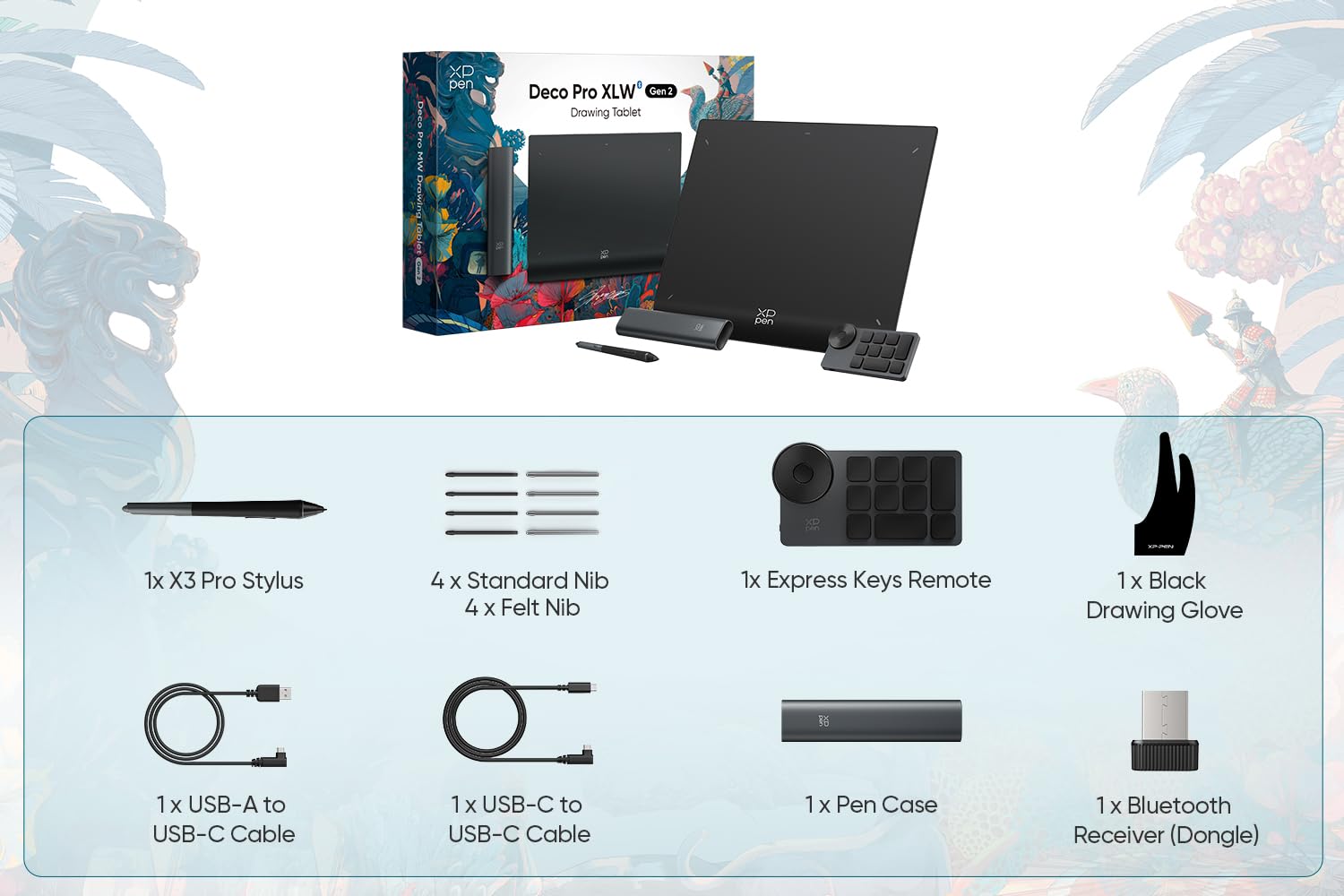


🎨 Elevate your art game—where precision meets freedom.
The XP-PEN Deco Pro XLW 2nd Gen is a premium 15-inch wireless drawing tablet featuring the revolutionary X3 Pro battery-free stylus with 16,000 pressure levels and 60-degree tilt support. Designed for professionals and creatives, it offers versatile connectivity options including Bluetooth 5.0 with dual device pairing, a large A3-sized active area, and an ergonomic metal backplate to prevent overheating and wrist strain. With over 10 hours of battery life and a fully customizable 10-key wireless shortcut remote, this tablet enhances productivity across digital art, animation, and video editing workflows.
| ASIN | B0C3QXT45F |
| Item model number | Deco Pro XLW(Gen 2) |
| Manufacturer | XP-PEN |
| Product Dimensions | 45.72 x 33.02 x 0.1 cm; 2.83 kg |
S**G
Es muchísimo más grande que la artist pro 16 second gen, esta muy pesada y eso es bueno ya que es de mucha calidad y buen material. La versión que compre fue la Xl y funciona mejor así para trazos mas precisos. No recomiendo las pequeñas ya que se batalla mas para dibujar. No le envidia nada a las Intuos pro de Wacom, me ha sorprendido la calidad y el arte de la caja es muy impresionante.
K**R
Si es muy grande por lo que debes considerarlo en tu mesa de trabajo
O**R
I'm just a hobby drawer who was upgrading from a medium intuos tablet. I did not want to get a screened tablet so I was looking for a regular drawing tablet. For the price for this one I did not expect it to be this big! It have a 32 inch 4k monitor that I use to game/draw, and have had no issues with the tablet. The fact that it is so big, makes it easier to draw as it almost matches 1:1 to what I see on the screen. Pressure feels nice and better than my previous tablet and have no issues there. The pen feels much better, both the way it feels to draw and to hold the pen. Having the external keys is also a very nice addition that I can move around where ever I need to. I do not use the Bluetooth option and always have it plugged in, so I can't comment on those functions (both the tablet and drawing keys are plugged by wire). One issue I have, although very very minor, is that when I turn off my computer, the blue LED constantly flashes in quick succession unless I unplug it from the cable. The manual/online states this means it is looking for a Bluetooth connection. My guess is that since it is plugged in, it constantly keeps looking for the connection. Unsure if this affects the battery inside since I always have it plugged in and do not plan to use it, but something I wonder is affecting it having it look for a connection 24/7 when I'm not using my computer.
J**H
Let's get this out of the way first: the 16K pressure levels that XPPen has been using as the primary selling point for the devices using the new X3 pen are, unfortunately, completely useless to anyone. The 16K levels should not be a point of consideration in any capacity, whatsoever, if you're between this and another tablet. Here's why: If you're coming from a tablet with 8K pressure levels, which has been the standard for years now, consider what the actual difference is between that and 16K levels. Having twice as many pressure levels doesn't mean you can press down twice as hard, or that it will detect twice as little force. What it means is that, for every pressure level the 8K tablet has, there is exactly one extra pressure level below it and one extra pressure level above it that the 16K tablet can detect. That's it. To use an analogy, if you bypassed the pen component entirely and just asked the tablet for a specific pressure level, an 8K tablet would be able to hit half as many values in the same range as the 16K. So if the 16K tablet can give you any number between 0 and 16,000, the 8K tablet can give you every OTHER number between 0 and 16,000. Like 2, 4, 128, or 15,650. But no odd numbers like 1, 3, 127, or 15,651. Understand? Now say you ask the 8K tablet for a number like 4097, the 8K tablet might say "Sorry, I can give you 4096 or 4098, but I'm not precise enough to give you exactly 4097. So you would have to settle for a value slightly above or slightly below the one you actually want. Now, does this actually make any difference? If you make a mark with your pen and it's at 4098 instead of 4097, would it even be perceptible to you? ABSOLUTELY NOT!! You will never, ever, ever, EVER be able to notice the difference in pressure that this 16K tablet will give you versus a tablet with 'only' 8K levels of pressure. Versus the 16K tablet, the tablet with 8K pressure levels will only ever be off by ONE SINGLE VALUE. Out of sixteen-thousand. Even a tablet with 2K pressure levels will not have any noticeable difference to the 16K. Do not let the marketing fool you into believing that 16K pressure levels makes this a better drawing experience. You literally cannot perceive the difference that 16K pressure levels will give you, so don't let it even be a point of consideration when buying this tablet. ------------------------------------------------------------------ So now that that's out of the way, here's my actual review: The good: 1) I bought the largest version of the Deco Pro Gen 2, the XLW. It advertises a 15" x 9" work area and it delivers. Coming from an Intuos Medium, the extra drawing space is AMAZING. I can use my arm to make marks, gestures are significantly easier and more fun, and I just feel like I have so much more room to work compared to a smaller space. I will never go back to a medium-sized tablet again after experiencing one this large. So props to XPPen for making the largest screenless tablet on the market right now. 2) The pen feels nice. It is light, thin, and combined with the felt nib and the surface of the tablet, drawing just feels good. The pen has a rubber-ish grip and it feels nice to hold, but the rest is obviously cheap plastic. Still a plus compared to other pens I've used. 3) The included 10-button dial with a wheel is a great addition. Unlike other reviewers, I haven't had any issues with rotating, zooming, or getting any of the buttons to work (note that you have to change the bindings on the wheel to get it to work in different art software... they don't all just have the same bindings by default). 4) The style. It's a very good looking tablet, it's lightweight, and the accessories are packed in a nice little container that looks higher quality than the parts that were used to make it. 5) The price point. Considering I paid the same amount for a used Intous Medium six years ago, this is a great price for a tablet of this size. Or it would be, if there weren't some notable flaws. ------------------------------------------------------------------ The bad: 1) XPPen has clearly not caught up to Wacom in terms of drawing quality. It hasn't even caught up to where Wacom was OVER 10 YEARS AGO when the Intuos 5 came out. Some examples of areas where XPPen misses the mark: 1a) The amount of force needed to get the pen to detect a mark (the lightest force you can apply) is three times that of my Intuos that came out in 2013. The Wacom detects input with only 1g of force. The XPPen requires at least 3g of force. This is immediately noticeable if you're coming from a Wacom device, but if you've never used anything but non-Wacom tablets you might not even notice the difference. I will say, you can pretty easily drag the XPPen pen along the tablet without it detecting any input because the force needed is so large. But if you make yourself a little more heavy handed it won't impact your drawing experience too much. 1b) The pen has built-in stabilization. That's insane that a modern pen would need built-in stabilization, but here we are. Normally if you're using Photoshop, or Clip Studio Paint, or any other software, there is an option to turn on stabilization that makes your marks less jittery and more smooth. But that's an OPTION, because not everyone wants that. The XPPen tablet comes with stabilization that cannot be turned off, ever. So you will never get 100% raw input. Whether this affects your drawing experience is up to you. Personally it doesn't affect me enough to remove any points. For reference, my Wacom Intuos from 2013 doesn't have any stabilization that I can detect, and no Wacom tablets that I know of have it. 1c) This tablet has pen wobble. If you don't know what pen wobble is, try making a straight diagonal line in your drawing software with a ruler. Make one straight line quickly, one at medium speed, and one sloooowly. If a tablet has pen wobble, then one or all of your lines will look wobbly instead of perfectly straight. That comes from the inaccuracy of the pen and low-quality digitizers. This is the second XPPen product I've used that has pen wobble (the first being the Artist Pro 15.6). In both cases, the pen wobble is only present when making marks slowly. I don't notice any wobble when making fast marks or medium-speed marks. For reference, my Wacom Intuos (again, from 2013) doesn't have any wobble at any speeds. Even though pen wobble should not exist in current year, the reality is that the pen wobble doesn't really affect me since it's only present at very slow speeds. ------------------------------------------------------------------ And now, the ugly: The biggest problem with this tablet is--and I can't believe that a tablet from 2023 is struggling with this--THE HOVER FUNCTION! The hover function lets the tablet detect where your pen is when it's above the tablet, but not actually touching it. It's common on all kinds of devices with a stylus, because you want to know where your pen is going to touch down ESPECIALLY ON A SCREENLESS TABLET LIKE THIS ONE. For every device I've ever used with a hover function, I've never once had to think about it while using it. It's always just worked. But XPPen proves that they cannot manage to make even this basic function work the way it should. First off, the advertised hover distance (the distance your pen can be above the tablet while still detecting its location) is 10mm. So one centimeter above the tablet is the maximum distance you can hold your pen. That's a very small distance, especially for a screenless tablet where you can't see where your pen is without hover. For comparison, my Wacom Intuos (again, from the year TWO-THOUSAND-THIRTEEN) has a hover distance that is three times greater at 30mm. This was the biggest, most glaring difference between the two tablets I noticed right off the bat. It affects everything from line ghosting to panning the view in Clip Studio Paint. It would be enough to dock a point overall, but not enough to give a bad review or return the tablet or anything like that. If it WORKED. The hover function does not work the way it should. The first Deco Pro Gen 2 I ordered had a broken hover function that was choppy. See my attached video. Instead of the cursor on my screen moving around smoothly with my pen, it teleports around in discreet increments. And if I move my pen around in a circle ~1 centimeter in diameter? The tablet doesn't detect the pen moving AT ALL. So basically I cannot use the hover function to position my pen with any precision beyond a 1cm horizontal distance. In other words, I have no idea where my pen is going to land if I make a mark because the tablet literally does not detect any pen movement until it moves at least 1cm in some direction. I contacted XPPen support about this, but their phone number just says to email them or use their chat system. I emailed them and never received a response, so I used their chat system. I got connected a polite artificial intelligence that quickly lost track of the issue, but it told me that "Unfortunately, it's impossible to give precision beyond 1cm for hover". Well, after confirming with two other owners of this tablet that theirs do NOT have this strange issue, I returned mine and got a second one. And guess what? It doesn't have that same issue. But the second tablet does have a different issue. After making sure it didn't have the weird choppy cursor, I noticed that I had to hold it closer for the hover to be detected. I measured the distance that the tablet detects the pen, and it is ALMOST HALF THE ADVERISED DISTANCE. My first pen was detectable at a 1cm distance, but this new tablet is not detected until I get to ~1/2cm or 5mm. And that's not even the tip of the pen, mind you. Their advertised 10mm only includes the casing of the pen, and the pen nib sticks out an extra 3mm. So I have to hold the tip of my pen TWO MILLIMETERS away from the tablet before it detects it hovering above it, and as soon as I raise it beyond that point it immediately stops detecting any movement. Obviously, this makes panning and ghosting lines extremely annoying. I find that even while trying to keep the pen as close as possible, I often either stray too far away or get too close and start making marks when I don't want to. Having only 2mm of wiggle room is not what I'd call pleasant. Keep in mind that my Wacom Intuos (yeah, that guy again) can detect hover from over ten times this distance. I can't believe that of all things HOVER is what a pen tablet company is struggling with. This tablet doesn't deserve to include the 'Pro' moniker in its title when it can't even do hover right. ------------------------------------------------------------------ Anyways, I'll be returning this second tablet as well and look at the Huion Giano G930L or the Wacom Intuos Large. Both are smaller than the Deco Pro XLW Gen 2, but hopefully neither will have such horrible hover functionality. I really liked this tablet beyond the hover problems, but they're too much to just ignore. XPPen, WHY??? Update: there's a separate issue I forgot to mention. Both of the tablets I ordered have the same issue where the pen will sometimes stop working in the middle of a stroke, so you get a broken line even though you never lifted up the pen. If you hit 'undo', it will undo all of the unconnected segments at once, because they aren't separate lines. This happens quite often when trying to make light marks. I uploaded two pictures: the broken line in the first one isn't from two separate marks, and the whole thing disappears when hitting CTRL+Z just once. Just another example of the pen not working the way it should. Downgrading drivers doesn't fix this issue or any of the other issues mentioned.
M**N
Purchased this for my son to NOT use while away at college. He did'nt use it but I do and it is great. Very precise and good quality. I would recommend.
Trustpilot
1 week ago
2 months ago