We remain fully operational. Our teams are working around the clock to ensure your deliveries continue safely.

DOWNLOAD THE APP


Customer Services
Copyright © 2025 Desertcart Holdings Limited
DOWNLOAD THE APP

🚀 Elevate your home network to pro-level speed and security — don’t get left buffering!
The NETGEAR Nighthawk AX3600 Dual-Band WiFi 6 Router (RAX41) delivers ultra-fast wireless speeds up to 3.45 Gbps and robust coverage for up to 25 devices across 2,250 sq. ft. Equipped with a powerful 1.5 GHz triple-core processor, WPA3 security, and 4 Ethernet ports, it’s designed for seamless 4K streaming, gaming, and video conferencing in 2-3 bedroom homes. Compatible with all major ISPs, this router ensures future-proof connectivity with WiFi 6 technology and enhanced data efficiency.


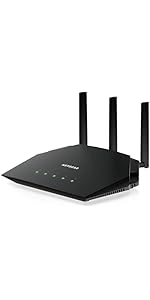
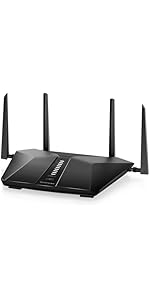


| ASIN | B0BC28BF7V |
| Antenna Location | Business, Gaming, Home |
| Antenna Type | Fixed |
| Best Sellers Rank | #12,233 in Electronics ( See Top 100 in Electronics ) #84 in Computer Routers |
| Brand | NETGEAR |
| Built-In Media | 4 external antennas, Ethernet cable, NETGEAR Nighthawk AX5/5-Stream AX3600 WiFi Router (RAX41), Power adapter, Quick start guide |
| Color | Black |
| Compatible Devices | Gaming Console, Personal Computer, Security Camera, Smart Television, Smartphone |
| Connectivity Protocol | Wi-Fi |
| Connectivity Range | 2250 Square Feet |
| Connectivity Technology | Ethernet, Wi-Fi |
| Control Method | App |
| Controller Type | Google Assistant |
| Coverage | Suitable for a 2 to 3 bedroom home |
| Customer Reviews | 4.2 out of 5 stars 3,445 Reviews |
| Data Transfer Rate | 3.45 Gigabits Per Second |
| Frequency | 5 GHz |
| Frequency Band Class | Dual-Band |
| Has Internet Connectivity | Yes |
| Has Security Updates | Yes |
| Is Electric | No |
| Is Modem Compatible | No |
| Item Weight | 1.3 Pounds |
| LAN Port Bandwidth | 1.5 ghz |
| Manufacturer | NETGEAR |
| Maximum Upstream Data Transfer Rate | 1000 Megabits Per Second |
| Mfr Part Number | RAX41-100NAS |
| Model Name | RAX41-100NAS |
| Model Number | RAX41-100NAS |
| Number of Antennas | 4 |
| Number of Ports | 6 |
| Operating System | Netgear proprietary operating system |
| Other Special Features of the Product | 1024-QAM 25% increased data efficiency and faster speeds than a 256-QAM router, 160MHz Channel Support*** Enjoy greater than 1Gbps WiFi speeds for blazing fast streaming and downloading to newer mobile devices, 5 Gigabit Ports Connect more wired devices for faster file transfer and uninterrupted connections, Internet Security, Powerful 1.5GHz Triple-Core Processor Ensures fast and smooth 4K UHD st… |
| Router Network Type | Wireless |
| Security Protocol | WPA3 |
| Special Feature | 1024-QAM 25% increased data efficiency and faster speeds than a 256-QAM router, 160MHz Channel Support*** Enjoy greater than 1Gbps WiFi speeds for blazing fast streaming and downloading to newer mobile devices, 5 Gigabit Ports Connect more wired devices for faster file transfer and uninterrupted connections, Internet Security, Powerful 1.5GHz Triple-Core Processor Ensures fast and smooth 4K UHD streaming, gaming, and video-conferencing Special Feature 1024-QAM 25% increased data efficiency and faster speeds than a 256-QAM router, 160MHz Channel Support*** Enjoy greater than 1Gbps WiFi speeds for blazing fast streaming and downloading to newer mobile devices, 5 Gigabit Ports Connect more wired devices for faster file transfer and uninterrupted connections, Internet Security, Powerful 1.5GHz Triple-Core Processor Ensures fast and smooth 4K UHD streaming, gaming, and video-conferencing See more |
| UPC | 606449156478 |
| Warranty Description | 1 Year Limited |
| Wi-Fi Generation | Wi-Fi 6 |
| Wireless Communication Standard | 802.11ax |
| Wireless Compability | 802.11ax |
D**R
Must do setup using "direct connect" method
Once you get it set up, it works fantastic. Strong wireless signal on both 2.4 and 5 bands. Super-fast wireless from my 900MB home broadband. Excellent access point. The only thing is, as others have said, is that the instructions for how to "just plug it in to a port on the router, and DHCP will take over, and then set it up" are unproductive. The default setup in the AP is for DHCP, but for the wrong network due to its default IP address of 192,.168.0.100. My router is 192.168.1.1, and the AP doesn't get set up properly by DHCP. I tried to follow these instructions first, and as others have said it just doesn't succeed, for the obvious reasons. But I've had prior experience with an earlier version of the Netgear access points, model WN604. The setup approach in that older model was outright described for manual method, temporarily connecting directly to a laptop or PC via ethernet cable. These are exactly the same manual configuration instructions as are described in the user manual for this new WAC104. Once you take this manual approach, instead of the DHCP approach, it's just a few minutes to complete the setup and get the WAC104 prepared for actually being connected on my 192.168.1.1 network. You first need to get your laptop or PC into the TCP/IPv4 properties, in order to change from "DHCP" to "manual static IP" mode. This is from Network and Sharing Center, and then click on "Change adapter settings", and then select your ethernet connection object, and right-click and select Properties to get the Properties dialog window. Then select the "Internet Protocol Version 4 (TCP/IPv4)" item, and push the PROPERTIES button. You're probably in "obtain an IP address automatically" mode, which means your PC/laptop is normally handled by DHCP from your router. Temporarily you must instead change this to "Use the following IP address", to assign a static IP (as described in the manual setup instructions of the WAC104 user guide) that will make the WAC104 directly visible to your PC/laptop. Enter an IP address of say 192.168.0.201, and a subnet mask of 255.255.255.0, and you can leave the "default gateway" blank. Then push OK, and OK your way all the way back out, and shut down. Then disconnect the ethernet cable from your PC/laptop to your LAN, and instead connect it from the PC/laptop directly to one port of the WAC104. Now re-boot the PC/laptop, and ignore any startup errors you might get from any of your software that might complain about not being able to get to the internet. On the computer, open a web browser and enter 192.168.0.100 in the address bar. A login window opens. Enter the access point user name and password. The default user name is admin. The default password is password. The user name and password are case-sensitive. You can change these default values later as part of your setup, if you want. The Home page displays. Customize the access point settings for your network environment. My approach was to configure the WAC104 for "static IP" (not DHCP), exactly as I did with my previous WN604. I picked a known available and currently unused IP address of 192.168.1.124, with a subnet mask of 255.255.255.0, and a default gateway of 192.168.1.1, and a primary DNS server of 192.168.1.1. This means in normal operation your WAC104 will always have a static IP address of 192.168.1.124 from your router at 192.168.1.1. And that means you can always subsequently get back into the setup dialog of the WAC104 if you want to, by using a browser and addressing it via 192.168.1.124. I also set my desired new SSID network names for the 2.4 and 5 networks, along with the new passwords (i.e. "passphrase") for those WiFi network signins. I also set wireless security to "WPA2-PSK [AES]", for maximum wireless speed on both 2.4/5 bands. At first I checked "WPA-PSK [TKIP] + WPA2-PSK [AES]" but when I pushed APPLY I was warned about the full-speed limitation of this option, something I wasn't aware of. So I instead checked the "WPA2-PSK [AES]" option which is perfectly fine with me. If you want you can also change the WAC104 login username and password through the Administration -> Set password dialog. Push the APPLY button, to save all customized settings. After you complete the setup go back into Network and Sharing Center, etc., and change the PC/laptop TCPIPv4 properties back to original IP address or DHCP. Then shut down the computer and power-off the WAC104, and disconnect everything. Now you can reconnect the PC/laptop with ethernet cable back to your router, and reboot. Everything should be back to normal again. And you can connect the WAC104 through its own ethernet cable run to an open port on your router (or remote switch). Power-on the WAC104, and wait for the lights to stabilize. You should now be able to confirm that you see the two new 2.4/5 WiFi networks using your smart phone and a WiFi Analyzer app. You should also confirm from your PC/laptop that you can also get to 192.168.1.124 via a browser. Simple and straightforward. Just manually connect static-IP PC/laptop via ethernet cable directly to the WAC104 for setup.
P**L
Setup was a breeze
I saw a lot of reviews saying the setup was a pain because it tells you to go to some url that figures out the right IP to hit for you, because you don't know what IP the WAP has when it is on the network. Well, I plugged it into the net, turned it on, and logged into my router. Under the connected devices, I found it and its IP. I set a reservation for it, logged into that IP in the browser with the default username/password that is repeated about a billion times in the user manual, upgraded the firmware, and setup wireless. It was just as simple as any WRT/WAP I've ever setup. Absolutely no issues if you know how to find a device's IP in your router. You don't have to use whatever weird internet site thing they have setup. You don't need connection to the internet. Heck, you don't even need a DHCP server. Jack into the thing directly and use the default 192.168.0.0/24 address it gets if DHCP fails, as documented in the user manual. Handy for if you're just setting it up to be repeater. I'm sure it works fine for that too, not that it was my use case. It works great. I did notice if you force WPA2 upon one WAP, and not the other, joining the strongest one doesn't seem to work awesome on the mac. But with both the new upstairs WAP and the downstairs WRT forced to only use WPA2, handoffs were working better and always connecting to the strongest WAP as expected. I mean, what more can you say about an inexpensive netgear WAP? It works as a WAP. It was very easy to set up for someone experienced and they clearly have gone extra steps to try to make it even easier for the layman. I did read that this thing is discontinued. That's a bummer. No idea how long it'll be supported, but if it continues to work I'll be happy for years until some of the newer crazier 802.11 stuff comes out with Gb+ speeds. Not like my Internet is faster than 802.11ac anyways, and I don't share stuff just on the internal network much anymore. Anyway. I put 3 stars for tech support just because I have no idea what the tech support is like. I'm sure it is sufferable. So a medium there? But it was precisely what I wanted. I was actually surprised to find a simple no-frills non-router cheap dedicated Wireless Access Point. Precisely what I wanted, expected, and got. A+
J**.
Works Well Once Set up, But Default Wireless Security was Open
I bought this access point for use in my home. The way my house is set up, the internet comes in to the downstairs, into a corner of the house. The house is older and everything is finished, so it's not the easiest thing to put our wireless router anywhere that gives coverage to the entire house. Because of this, my bedroom is a Wi-Fi dead zone. I do have a Cat5e cable run to the upstairs and connected to a switch, which provides network connection to our entertainment center. I have placed this access point on the entertainment center, and it provides good reception to our bedroom on the other side of our 1500 square foot house. Once I was able to access the setup menu, things were simple and I was able to configure the access point to my liking. Setup, however, was a bit tricky. First off, I'm not a network professional, but I do consider myself above average in networking knowledge. I have a small home network with a NAS box, a desktop PC, two laptops, a smart TV, networked sound bar, Xbox one, Chromecast, a couple tablets and a couple of phones connected to it off and on. I've been able to set up all these devices myself with little difficulty. After unboxing this access point, I connected it like the instructions directed, and then I opened my browser on my desktop PC (which I had plugged directly into the access point) and directed it to the device's default network address, 192.168.0.100. Unfortunately, my browser couldn't find anything there. I still had internet access and I was able to use the access point as set up out of the box to access the internet with my phone wirelessly, too. I knew the access point was working, I just couldn't get to the setup page. It turns out that my router (an ASUS RT-AC68U) has a default address of 192.168.1.1. Since the access point's address is 192.168.0.x, I was unable to see it with my computer's IP address settings. To fix this, I had to manually change my PC's IP address to 192.168.0.200, and then log into the access point at it's default address of 192.168.0.100. Once in, I changed the access point's IP address to 192.168.1.202 (outside of my DHCP client range on my router) and set the default gateway to 192.168.1.1. Then I reset my PC's IP address to the way it originally was, and was able to continue normally. All this setup was because my ASUS router and my Netgear access point have different IP addresses. I don't blame Netgear for this, as I bet if I had a Netgear router, it would have worked without a hitch (at least I would hope it would). As I said above, the access point worked out of the box and gave my devices network access, but I wanted to get into the settings. Why not just leave everything the way it came? Because the way it came, the wireless was set up with no security whatsoever. Completely open to anyone in the world to get into your private network. The back page of the setup guide says that the access point automatically uses network security, so you don't need to set it up. Unless you want to give your neighbors open access to your network and free internet, I would disagree with this statement. If I understand correctly, this device hasn't been out long, and I bet this is something they will fix in the future, but at this point, I wouldn't buy this for my grandpa, or anyone else who doesn't know technology very well. As for the device itself, it's a little bigger than it seems like it needs to be, and it has a bit of a hollow feel to it, like it's got a lot of open space inside it. The antennae do seem sturdy though, and the range is good. It's also got two mounting holes on the bottom, so it can be wall mounted, if needed. There are also four gigabit ports on the back, which allows it to be used as a switch (for up to three additional devices) in addition to the wireless access point, which is nice. The configuration page, once accessed, is pretty standard stuff; I was able to assign unique names and passwords to both the 2.4 and 5ghz bands, as well as change other settings as I would expect to. I gave this 4 stars from my perspective, as once it's set up, it works just like I feel like it should. One star was removed because of the open security, which seems like an error, and the setup difficulties were neutral, as I don't really know of a way around this when the default addresses are different, based on my somewhat limited knowledge of networking. Bottom line: This is a good buy if you need a separate wireless access point and you have a Netgear router, or you aren't afraid to work a bit of googling things to get the set up complete. I would maybe look elsewhere if your router's brand is not Netgear and you are a bit scared of figuring things out.
K**M
Not a Router or DHCP Server
5 Stars, once you accept this is NOT a Router and doesn't have a built-in DHCP server. This is ONLY a 'DUMB' Access Point and switch, as advertised, and doesn't deserve to get dinged with 1 star since not intended to handle routing or provide IP addresses via DHCP. The Wifi connection is solid and fast, 400+Mbs down and 50Mbs up, which is more than enough for my network since my desktop computers and Xbox connect using ethernet cables. Absolutely a great value at this low price!!! I'm buying a 2nd for my basement to replace a 10-year-old A/P. I connected directly to my computer with the (hint!!!) INCLUDED 3 ft network cable and was able to complete setup without any issues. Once setup was complete I then connected to my home Cable Modem/ROUTER via a network jack I have at the other end of the house (years ago I ran CAT6 cable/jacks to most rooms and the basement). Since the default IP on this device is 192.168.0.100, the easiest way to connect is to set the IPv4 address of the computer to static 192.168.0.2 (range 1-200 but of course not 100). From there you will certainly connect with the default ID/PW. Then you can proceed to configure based on the IP settings of your Router, which will be easy if your home Router is based on 192.168.0.1, which many are. However many home networks are based on 192.168.1.1 or some other address, which will require a slightly more involved setup and very very basic knowledge of computing networking. I appreciate that some laptops won't have an ethernet port, which will also make it a challenge to configure. I would then recommend getting a cheap USB ethernet adapter or simply letting someone with a laptop and very basic computing networking skills assist.
E**T
Works as intended, can be difficult to setup, though
This works as a Wireless Access Point (WAP) with hardware passthrough, and it works just as that! It has default SSID name and password, as noted on the bottom of the WAP. As others have said, it is difficult to setup if you're unfamiliar with this kind of tech. The instructions expect your router to allow for static IP, but they're traditionally dynamic so the URL they give you won't take you to the "admin" page. Which forces you to try and find the IP that the router has given this WAP. On mac, I opened the command line and ran `arp -a` to list out all the IPs connected to the router, which might be a lot for you, I had about 20 devices. This command will work from the windows command line (cmd). In order to find the WAP IP, I then went through each IP and entered it in the browser (e.g. http://192.168.0.[0-255] - again I only had about 20 options) until I was prompted for a username/password (you might find your router's admin page, which is not the same, usually 192.168.0.1 or similar), NETGEAR's admin page launches with a browser popup. From there I was immediately asked to rename the admin password. Then I updated the 2.4 and 5ghz SSIDs and passwords. I'll be buying another
S**K
Low quality product + poor documentation + frustrating service experience = never again
For some reason my home network is different from a "standard" home network (for reasons tech support never figured out), such that the setup instructions provided for my WAC104 did not work, regardless of which variation I tried (manual vs automatic, wired vs wireless, etc.). So, I contacted support to get help in setting it up. It took several days to coordinate a time to talk and it took several hours as the technician struggled to figure out how to get my unit running with my network configuration, but we finally did, and I was temporarily satisfied. A few days later, the AC signal on the unit started failing intermittently, requiring a manual reset of the unit each time, once or twice per week. This is not a huge deal necessarily, but all of my smart home devices connect through the AC signal, so every time it failed all of the light switches in my house started blinking, usually in the middle of the night. I then spent more than a month with support helping them try to figure out why this was happening. There were several additional calls, which again took a while to coordinate, presumably because of time zone issues with their support staff. After several follow-ups where they tried to collect log data, I finally broke down and begged support to just send me a new unit, which thankfully they agreed to do. However, they originally sent me an RMA where I would have to pay for the shipping on the new unit myself, which was about half the price of what I originally bought. After responding to a customer service survey quite angrily about my experience, tech support got back to me and said that, in fact, I actually DO qualify for a free replacement, which they would send immediately. Thankfully, they did just that. HOWEVER, after receiving the new unit, I am back at square one with the initial setup, which STILL does not work per their instructions, and now, because my original purchase was more than three months ago, I no longer have free technical support and cannot reopen the case I originally had with them. I appreciate the effort their tech support made, but I can't justify ever buying Netgear again after this experience, and I had been a loyal customer for years.
J**O
Old when it’s new!
This unit is an older model. I did not realize that when I bought it. It works fine. I’m concerned that they will stop supporting it soon so I will be in the same spot I started in. The reason I bought a new one was because they said they weren’t going to keep supporting my old one. Read the dates on things before buying!
A**Y
Easy and Quick setup, Great Speed, Affordable AP
My current (low-budget) AP had burnt out and I had a need to replace my home AP quickly, Amazon Prime to the rescue! Please keep in mind that this is an Access Point, NOT a router - it will not hand out IP addresses via DHCP. I use an Edgerouter Lite-3 to feed a 48-port managed switch and then this AP. Setup was extremely easy - please keep in mind the default IP address of this gateway is 192.168.0.1 so you need to change the IP address of your computer (easily done) to something on the 192.168.0.1/24 subnet; I used 192.168.0.200 and was able to access the GUI instantly via ethernet cable. After setting up my SSID's, enabling WPA2 encryption for security and updating the firmware, I change the IP address of AP to the correct subnet it would be on from my ERL-3 in the 192.168.200.1/24 range. I also pointed my DNS server address to the Edgerouter instead of just using Google DNS 8.8.8.8 / 8.8.4.4 right on the AP because I wanted my router to handle all DNS requests. After re-IP'ing the AP and plugging it in to my Edgerouter, I was able to wirelessly connect to the GUI using its newly-assigned IP address to poke around the GUI and finish my configuration settings. Range and speed has drastically improved since swapping out my old Access Point with this model. If you are looking for a full-fledged router that has DHCP, this is not for you. It is strictly an Access Point that needs to be plugged into a router to obtain IP addresses. Does the job I needed it to do and AC speeds are excellent. Typically getting ~90Mbps Download and ~15Mbps Upload on a 75Mbps Comcast connection. My Comcast modem is in bridged mode and I let my Edgrouter handle all routing. Would highly recommend.
Trustpilot
1 month ago
5 days ago