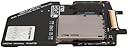
Disclaimer: Don’t go by what I say here: I might have made incorrect statements. Do your own research. Using the iFlash-Solo SDXC Adapter, I upgraded storage in each of my Gen 5.5 iPods (Models MA448LL & MA450LL) from the original 80 GB hard drive to a 256 GB solid state drive. For the SD card, I used: Samsung 256GB EVO Plus Class 10 UHS-I microSDXC U3 with Adapter (MB-MC256GA). Three most important things to know: - Watch Youtube videos! Learn from others before you start. I found the following video to be helpful: Upgrading a 5th Gen iPod "Classic" with an "SSD”. Pay particular attention to the parts about unlatching and relatching the battery ribbon cable and the drive ribbon cable. - Visit iFlash website for helpful instructions and tips. - If you are installing an iFlash, then also install a new battery. I ordered batteries from iFixit via Amazon. Installing this board isn't bad if you know how to do it. Hah! But what if you don't know how to do it! Well, it can be a challenge (a royal pain). So learn as much as you can about the "surgery" before you start. Go to the iFlash website and look under “Installation” for the iFlash Solo. If you do not know what you are doing, you can destroy your iPod. So look for Youtube videos that show how to: (1) Open the iPod safely without damaging it; (2) Disconnect and reconnect (unlatch and relatch) the battery ribbon cable; and (3) Disconnect and reconnect (unlatch and relatch) the hard drive ribbon cable. Note: The iFlash package does not come with any tools to open your iPod. You can search for: iPod tools or spudgers. I bought a iSesamo, but I had better luck using a narrow putty knife, a pocket knife, and some guitar picks. Some people use plastic tools designed for opening phones. WARNING: I would guess there is a 50 percent chance you could destroy your iPod when you open it and play with the connectors. You can improve these odds significantly by watching YouTube videos before you start. Even then, prepare yourself emotionally for the death of your iPod, just in case the worst happens during surgery. It’s possible that you might spend 80 dollars on parts (for the iFlash and the SD card) only to kill your iPod during surgery. You might consider one of the following: (1) Only perform this surgery if your iPod needs a new battery or storage drive (“if it ain’t broke, don’t fix it”); (2) Don’t order parts until you have opened the iPod without damaging it; or (3) Don’t open your new parts until after you have opened the iPod without damaging it (that way, maybe you can return the parts for a refund). Lastly, if you do kill your iPod, you can buy used iPods online for about 40 dollars. SD Card: - The iFlash Solo takes a regular SD card, but the micro SD card I used came with an adapter. Just fit the micro SD card into its included adapter, then insert the adapter into the iFlash Solo. - The SD card must be reformatted (from exFAT to FAT32) before you install it in the iFlash (described later). WARNINGS: - You can easily destroy your iPod during the operations to open the case, replace the battery, and replace the old hard drive with the iFlash. - A major challenge of this operation is to open the iPod without breaking anything. (The iPod was not designed for the user to open.) You can accidentally break your iPod while opening it (you can damage fragile ribbon connectors, the face plate, the circuit board, the headphone jack, the switch, and/or the data cable connector). - Watch Youtube videos on how to open the iPod. For example, search for: iPod battery replacement. - Pay particular attention to where to start and sections to avoid (sections near ribbon cables and connectors). Perhaps find a picture showing the locations of the clips. SUGGESTIONS: - There are 11 clips. With the iPod face down (screen-side down) with the earphone jack at the top, there are: (1) 4 clips along the right side; (2) 4 clips along the left side; (3) 1 clip at top (about 23 mm from right side, next to the headphone jack); and 2 clips at bottom (on either side of connector plug). Find a Youtube video describing or showing locations of clips. - I started opening case at along the right side (with screen facing down and the headphone jack at upper right pointing away from you). A narrow putty knife and guitar picks worked best for me: the putty knife to release the clips and the picks to hold the case open while I moved to next clip. There are no ribbon cables along the right edge. You just need to be careful not to damage the circuit board. - Recommend pushing straight down to release clip. Do NOT pry up under the circuit board. - Some videos show starting at the bottom (where data cable connects). I felt that starting on right side (with screen facing down) has less potential for damage. - I would suggest you avoid using a wide tool (like a putty knife) for the top or bottom connectors, since you might damage something. Be careful with top clip, since you can damage either the headphone jack or the switch. Luckily, I did not need to release the top clip or the bottom clips: the top clip released when I released the right-side clips, and the bottom clips released when I released the left-side clips. - Before you reassemble the cover, make sure all the clips (located on the silver back cover) are pointing down. They may have been bent upward during disassembly. WARNING: The connector on the circuit board for the battery connection is very fragile. The connector pins (underneath) are only spot-soldered to the board and they can easily (very easily) break off. If a pin breaks off the board, your iPod is dead. You do not need to remove the plastic connector. All you need to do is move the sliding part of the connector up to unlatch the battery ribbon cable. You then just pull out the ribbon cable, but NOT the connector. If you pull the plastic connector off the circuit board, your iPod will probably be irreparably damaged. This may be the risky part of this whole operation. TIPS for ribbon cables (extremely important): - You will need to disconnect and reconnect two ribbon cables: (1) the ribbon cable from battery to the circuit board; and (2) the ribbon cable from the circuit board to the drive (hard drive or iFlash). - Each connector has a "clip" to hold the ribbon cable in place. You need to: (1) open (unlatch) the clips to remove the cables; and (2) close (relatch) the clips after cables are replaced (otherwise, cables will popout). - For the battery connector, the clip is positioned "Up" to unlatch the battery cable, and "Down" to latch the cable. If you apply enough force to pull the connector off the circuit board, you may destroy your iPod. Watch a Youtube video that shows proper method. You just pull the ribbon out of the connector (after unlatching); you do NOT pull off the plastic connector. - For hard drive connector, do NOT try to remove the connector from the old hard drive until it is unlocked. Find a Youtube video that shows how to unlatch and relatch the drive ribbon cable. (I cannot describe it in words accurately). After the iFlash is connected to the ribbon cable, it needs to be relocked or else cable will slip out of the iFlash. PREPARE SD CARD: [Consider not opening your SD card until you have successfully opened the iPod, so you can return the SD card if you kill your iPod while opening it.] - SD card comes formatted for ExFat, but it needs to be reformatted for FAT32. - Refer to iFlash webpage under "Prepare SDXC (ExFat) for use with the iPod." - Load free version of AOMEI software. - Plug the microSD card into a USB adapter, connect it to computer. Then uses AOMEI to: (1) Rebuild MBR; (2) Delete all partitions; and (3) Create partition (FAT32). - Install microSD card into its included adapter card, then insert adapter card into iFlash until it "clicks" in place. - Apply one of the foam pads (comes with iFlash) over the end of the SD card to help prevent card from popping out (pad spans from iFlash to end of SD card adapter over end of micro SD card to iFlash board). TIPS for iFlash installation: - Go to the iFlash webpage, go to the page for the iFlash Solo, then look under "Installation" tab. This shows general set of photos but does not give details. For example, it doesn’t show: (1) the locations of the hold-down clips for the case; or (2) how to unlock the battery ribbon cable and the hard drive ribbon cable. Look for Youtube videos that show these things (very important). - The iFlash is installed with the SD card facing up. - Watch some YouTube videos. Just search for: iFlash. - Make sure to latch the ribbon-cable clip after connecting the drive ribbon cable to the iFlash. After you have installed the iFlash (make sure SD card is installed and clicked-in) and a new battery, you might want to leave the case open until you verify the iPod works. Otherwise, you might need to open the case all over again (a royal pain). - You may need to charge your new iPod battery, but my new batteries came with a good charge on them. - Turn on your iPod and see if it wakes up from surgery. - Since there is nothing on the iFlash SD card), the iPod will display an error message to Restore the iPod using iTunes. LOAD iPod OPERATING SYSTEM ON iFlash: - Open iTunes on your computer - Plug your iPod (with new iFlash) into computer. iTunes will recognize it. - Follow the on-screen instructions from iTunes to restore your iPod. This will install the iPod operating system on the new drive. - After restoration is complete, you should see a normal iPod UI (user interface) screen. - If you like, go to Settings/About and verify the new storage capacity. LOAD YOUR TUNES with iTunes