

🎮 Level Up Your Gaming Experience!
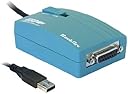
The Rockfire RM-203 USB Game Port Adapter allows you to connect analog joysticks to your PC, supporting four different joystick modes and compatible with Windows XP through Windows 7. Its compact design and lightweight build make it a perfect addition to any gamer's setup.
| ASIN | B004HAX7OU |
| Brand | RockFire |
| Color | Turquoise |
| Compatible Devices | PC |
| Connector Type | USB Type A |
| Customer Reviews | 4.0 out of 5 stars 200 Reviews |
| Finish | Matte |
| Item Dimensions | 7.1 x 1.7 x 6.4 inches |
| Item Weight | 0.02 Pounds |
| Item dimensions L x W x H | 7.1 x 1.7 x 6.4 inches |
| Manufacturer | PCCables.com |
| Mfr Part Number | 70609 |
| Model Number | RM-203 |
| Number of Items | 1 |
| Number of Ports | 1 |
| Package Quantity | 1 |
| Power Plug Type | No Plug |
| Specific Uses For Product | gaming |
| UPC | 820799706095 |
| Unit Count | 1.0 Count |
K**L
For my old CH Products gear, & Windows 7 Pro
I haven't used my old CH Products flight gear since they stopped putting a gameport in computers . . . that is, years ago. With the recent release of Microsoft's new free game, FLIGHT, I thought it was about time to dust off my old gameport CH Products game controllers and go for a fly. So I was really happy to find the Rockfire RM-203 adapter that turns my old gameport gear into USB gear. This is a lot cheaper than replacing all my gear with all the new USB counterparts! The Rockfire adapter has 4-modes, each mode for use with various brands of controllers (see later paragraph). CH Products works with Mode 2. I say 'works' although not all the buttons on the controllers will function. First I hooked up my old CH rudder pedals and my old CH Virtual Pilot Pro yoke with the Rockfire adapter. Here's my results (also see the photo I uploaded): CH PRODUCTS VIRTUAL PILOT PRO (w/ CH Rudder Pedals) --------------------------------------------------- * Turn & pitch (x & y axis) = works * Buttons = 4 of 6 work (in this order: Y Y N --- N Y Y) * Hat switches = 1 of 2 works (just the right one) * Throttle control = (slider) works * Rudder pedals = (z axis) works I also tried my CH Products F16 Combatstick and rudder pedals with the same results: CH PRODUCTS F16 COMBATSTICK (w/ CH Rudder Pedals) ------------------------------------------------- * Turn & pitch (x & y axis) = works * Buttons = 4 of 6 work (red trigger, red thumb on grip, gray thumb on face/top, red pinkie) * Hat switches = 1 of 2 works (top one, not the 4-way) * Throttle wheel = (slider) works * Rudder pedals = (z axis) works When I incorporated my CH Pro Throttle into either of the above setups, all that works on the Pro Throttle is the slider itself (no buttons, no hat, no switch), and the configurations stayed the same as noted above except the throttle controls (slider) were transferred to the Pro Throttle. I am using Windows 7 Pro 64-bit, and all the drivers are built in. The Rockfire adapter makes the old gameport controllers plug and play USB. You can still bring up the Game Controllers box in Windows and run a calibration. Although I only have CH Products gear, the Rockfire adapter box says it also works with the following brand peripherals in the other modes. I can't verify any of these other modes, because I only have CH Products and am using Mode 2. I just thought this may help someone. * Mode 1: Avant Garde, Bazooka Fighter, and Thrustmaster FCS compatibles * Mode 2: Maya Fighter, and CH Products Flightstick Pro compatibles * Mode 3: Fire Plus, Fire Dragon, and other 4-axis, 4-button joystick compatibles * Mode 4: Silver Hawk II, Space Ranger, and other sophisticated 2-axis, 6-button gamepad compatibles In conclusion: Obviously, if you are a serious virtual pilot you will want to replace (or more likely, already have replaced) all your old gear with the new and no doubt improved USB models, so that all of the buttons, hats and switches work. But if you are a casual virtual pilot, or just someone who wants to dust off their old gear from the box in the closet for a few hours of fun, then I can definitely recommend the Rockfire RM-203 Gameport Adapter for a simple and cheap solution.
D**N
Doesn't identify the joystick model, but does work
I have been using this Rockfire adapter on a computer with a dual boot of Windows 7 (64bit) and Linux Mint 17 (64bit). I have used it with both a Gravis Analog Pro and a CH Flightstick Pro. The adapter has a switch that is supposed to let you choose between Switch position 1 __ Thrustmaster FCS and compatible Switch position 2 __ CH Flightstick Pro and compatible Switch position 3 __ 4-axis 4-button joysticks Switch position 4 __ 2-axis 8-button gamepads Both Windows 7 and the joystick tester in Linux Mint 17 (jstest-gtk) identify the joystick by what switch position is used on the Rockfire -- not by what joystick is attached to it. However none of the switch positions identify the CH Flightstick Pro as a CH Flightstick Pro. This is how they are identified by jstest-gtk: Switch position 1: 2-axis, 4-button joystick with view finder, rudder Axes: 5 Buttons: 4 Switch position 2: 4-axis, 4-button joystick with view finder Axes: 6 Buttons: 4 Switch position 3: 4-axis, 4-button joystick Axes: 4 Buttons: 4 Switch position 4: 2-axis, 8-button gamepad Axes: 2 Buttons: 8 Results in Windows are similar (unplug USB connector, change switch on Rockfire, plug back into USB port, check what it says about the joystick in DEVICES AND PRINTERS). Results should be different for the four different switch positions. None of these really match the configuration of my CH Flightstick Pro, which has the 2-axis stick plus the throttle gear (3-axis), 4 buttons (one of which is the trigger) plus the hat switch (aka the "view finder"). Calibration options for the CH Flightstick Pro with the Rockfire in either Windows or Linux are limited. Aside from being able to outline the reach of the joystick, you get what you get. No ability to calibrate dead zone or sensitivity. I'm not sure why they specifically mention the CH Flightstick Pro when switch position #2 actually seems to be for a different CH model -- or maybe one with more pieces than the joystick, like a configuration that includes a separate throttle or pedals. Certainly my CH Flightstick Pro does not have 6 axes. However the Rockfire does work for basic joystick function. So far I've mainly used it for playing DOS games in DOSBox, where I have to do additional calibrations once the game is started - one for the DOSBox mapper and one for the game itself. Without calibrating the DOSBox mapper, only one of the buttons (button one - the trigger) works. Without using the game's calibration system, the joystick cursor is often stuck in the upper left corner. I see a slight lag in DOSBox, but then I see that in DOSBox with a joystick with a direct USB connection too so I am inclined to blame DOSBox's less-than-perfect support for joysticks rather than the adapter.
V**S
Works fantastically with my Thrustmaster Pro FCS
I was originally fixing to make my own analogue 15-pin joystick to USB adapter by cannibalizing an older junked joystick (switches went bad) and soldering the DAC pinouts to a D-sub DA-15 connector, then shoving everything into a 3D-printed housing. However, when I sat down to really take stock of the labor I'd be doing, I checked around to see what was already on the market. Turns out, not a whole lot! There is this Rockfire adapter and a couple knock-offs, all for the same price. Since they're all the same reasonable amount of coin, and my time isn't free, I decided to go with the one all the others are copying. The box for the product looks and feels like it came straight out of Fry's back in 1999, and for a piece of retro-to-modern kit that's perfect. Instructions are short, clear, and to the point. Set the switch, plug in your old-timey joystick, then stick the USB end into your computer. Win7 automatically snagged the appropriate driver and I was up and running in about five seconds. My old much-in-need-of-cleaning Thrustmaster Pro FCS calibrated about as well as can be expected with old, dirty pots, and with a bit of deadzone tweaking I was playing Wing Commander the way I prefer it once again. All buttons/switches registered correctly, and without any perceptible lag/delay (I can't feel microseconds). $25 felt a little high for what amounts to a simple DAC and USB module, but I can't argue with results. Instead of tearing apart a donor stick and spending an hour soldering and swearing at 24ga wires, I got a simple blue dongle that does the boring work for me. If you've got an old analogue flight stick you love, give this thing a shot. Yes, you could get a brand new basic flight stick for the same price, but if you've got an old top-shelf stick sitting in your closet, or you've picked one up off eBay for playing old games off GOG/in DOSBox, it's worth the price of admission. One thing of note: If you are using a full HOTAS setup, you might actually need two of these things. Back in the day, some stick + throttle or stick + throttle + pedal setups required the use of multiple game ports, or active splitters to get all the signals through. This device cannot handle those setups by its lonesome. Just keep that in the back of your mind if you've got the full cockpit of controls, and can't get everything to work together all at once - you might need a second adapter. Thumbs up. I like it.
A**N
Awful product.
Didn't work for the joystick it claimed to work for.
C**H
Generally works, but may not work with specific devices or games.
First, if you have a relatively inexpensive gameport joystick, just buy a new USB one that will be fully supported. Don’t spend half the price of a new $50 USB joystick on this thing (and certainly not if you have a $25 joystick). But if you have an expensive high-end stick or HOTAS setup, driving wheel and pedals, whatever, this is well worth trying to save money on a new expensive stick/setup. See all of the details below to know if it may work for your stick (or wheel, HOTAS, pedals, or whatever). Generally works, but some games/devices may not. I give it 4 stars because it does what it should at a general level, as long as you know its limitation (details below), but I take 1 star off because of the following issue… It’s main drawback is that Windows sees it as a "gamepad" type of device, like the gamepad used for an Xbox or PlayStation, instead of a true "joystick." I don’t know exactly how Windows tells the difference, but it does. You won’t see this distinction in the device properties or calibration settings in Windows itself, but some Windows games explicitly look for a "gamepad" or "joystick" device. So if the game explicitly wants a "joystick" type device, this won’t work with that game. (The new Star Wars Squadrons being my primary example.) Although it will likely work with older games, or games that don’t explicitly care about the device type. I’m experimenting with various game controller utility software to remap a gaming input device to another joystick device, or even the keyboard, but so far I have not found a combination that works with Star Wars Squadrons. UPDATE: I found a work-around for it being recognized as a "game pad" instead of a true joystick. Using 3 pieces of open source software, vJoy, Joystick Gremlin, and HidGuardian via WhiteKnight (Google them), you create a virtual "joystick" using vJoy, use Joystick Gremlin to map the original physical device to the virtual stick, and HidGuardian to hide the original physical device. Tested on Windows 10 64-bit. Windows recognized without needing to install any special drivers. NOTE: The Windows "Game Controllers" config and calibration tool is difficult to find in Windows 10. It cannot be found through the new style Windows 10 "Settings" screens. The easiest way is to simply click Start, then search for "joy.cpl". Otherwise, bring up the classic "Control Panel," then open "Devices and Printers." You'll see the device listed and should have a "gamepad" icon. RIGHT-click on the device and select "Game controller settings." Tested with a CH Flighstick Pro, CH F-16 Fighterstick, and Thrustmaster X-Fighter. CH Flightstick Pro, and Thrustmaster X-Fighter worked great, both with Mode 2, except for the above issue (being detected as a "gamepad" instead of "joystick"). The TM X-Fighter is functionally the same as the CH Flightstick Pro (x & y axes, 4 buttons, 1 POV hat) except that the CH Flightstick Pro also includes a throttle z axis slider that the TM X-Fighter does not have. The CH F-16 Fighterstick worked as far as the x, y, and z throttle axes, and 4 base buttons. But none of the hats worked because they were intended to be mapped to keyboard keys. It has a 2nd cable that plugs into an old PS/2 keyboard port, and this adapter can't mimic the keyboard part. But I didn't expect it to. UPDATE: With the CH F-16 Fighterstick, I was able to get the hats working by using an ACTIVE PS/2 keyboard/mouse to USB adapter. The catch is that there's no way to program the hat switches on the old F-16 Fighterstick on a modern PC. You'll need to find an actual Win 98 PC with a real game port and ps/2 KB connector to program them. But once programmed, it'll work on a modern PC with the active ps/2 to USB adapter. What I did was to program all the hats (4 hats, 4 directions each, thus 16 "keys") to the Num Pad keys (there are 16 num pad keys including Enter), and then I remap in game to whatever "key" the specific hat and direction I want to use is. Beyond that… Some general comments about it’s known limitations. As long as you go in knowing this, and your devices work within these limitations, it should work for you. ANALOG STICKS ONLY. Some later gameport joysticks were "digital". These will not work. I see reports in other reviews of the MS Sidewinder working for some people and not for others. I believe there were different versions of the Sidewinder. At least one version had a mode switch for analog or digital. Make sure it’s set to analog. Other versions might be digital-only. There was a version made to run on either gameport or USB and had its own little gameport to USB adapter. That version of the Sidewinder will NOT work with this adapter, but you can find an buy an adapter cable specifically for that model of Sidewinder. NO FORCE FEEDBACK. It’s built to pass through the control signals only. It doesn’t have capacity to handle force feedback. YOU MIGHT NEED 2, or more. Depending on how fancy your old setup was, you might need multiples of these to make it all work. The most it can support is 4 axes with 4 buttons and 1 POV hat. If you have a separate HOTAS throttle with its own buttons and hats, pedals, etc., you might need additional adapters. (There is also a 2 axis, 8 button mode, with no hat. See mode list below.) UNPLUG AND PLUG BACK IN IF CHANGING THE MODE SWITCH. If you need to try different modes for your stick, you must unplug it from the USB, change the switch, and plug it back in. Windows will not recognize the device change if you just change the mode switch while it’s plugged in. Mode explanations - More detail than the manual gives you. The "quoted" part is how the device shows up in the Windows Game Controllers configuration tool (joy.cpl). This should give you a better idea of which mode to use with your device/setup. If your device doesn’t fit these modes, especially if it has MORE buttons/hats/whatever than defined in any of these modes, then you may get limited functionality (additional buttons/hats, etc. won’t work) or it may not work at all. 1 - "2-axis, 4button joystick w/view finder, rudder" - x & y axes, 4 buttons, 1 POV hat (view finder) and a "Z Rotation" axis for rudder/twist (for joysticks where the handle actually twists side to side, might also work with pedals as the Z Rotation/rudder). So technically it’s 3 axes with the x, y, and z rotation/rudder. 2 - "4-axis, 4button joystick w/view finder" - x, y, z Throttle & z Rotation axes, 4 buttons, 1 POV hat. Oddly, the actual "CH Flightstick Pro" for which this mode is named in the instructions does not actually have a 4th "Z Rotation" axis. It only has the z Throttle slider. This IS the mode I use for both the CH Flightstick Pro and the TM X-Fighter. It just ignores whichever z axes that the particular stick doesn’t have. But I suppose if you had a device with the 4th Z Rotation axis, and the other features matched this mode, this mode should work. 3 - "4-axis, 4button joystick" - x, y, Z Throttle & Z Rotation axes, 4 buttons. Essentially the same as mode 2 without the POV hat. I'm not sure why this needs its own mode, even if your joystick doesn't have a hat, vs. just using mode 2 and ignoring the hat. But try this mode if the other modes don't work. 4 - "2-axis, 8button gamepad" - x & y axis, 8 buttons. Trades the 2 Z axes for additional buttons. I was not actually able to test this mode because I don't have a device that fits this. One thing I found is that the most common base functions of the x & y axes and 4 buttons worked in all modes no matter which stick I was using on which mode. It's the additional z axes and buttons beyond 4, or POV hats, that may or may not work depending on the mode.
M**B
Works for some older games, not Star Citizen
I have an old Thrustmaster flight control system mark II. Window 10 immediately recognized this adapter and my FCS as a generic joystick input. And to be completely clear, it does indeed recognize all 3 buttons, trigger and four way hat! I have a thrustmaster weapons control system mark II on order and will be testing it asap. Will update as I make progress. Even if its not fully functional with the throttle, at very least got my flightstick up and running again which im thrilled about :) Unfortunately this adapter does not work my Thrustmaster Mark II Joystick in Star Citizen which I was really hoping for. Windows recognizes it along with external joystick profile editors but when you try to insert the XML profile into Star Citizen its doesn't recognize any of the axis or buttons in game. I've tried several work-arounds but not having any luck. It will get you up and running for older game like X-Wing but thats all Ive had luck with. EDIT: Thrustmasters old FCS Mark II Throttle has limited functionality. Only throttle itself and 2 buttons for me but by doing so you obviously need a second adapter for the Flight stick.
G**R
this adaptor lets me play x-wing on my laptop with a vintage joystick and i enjoy doing that
i can't assertively say that this product is flawless, but here's the results of the test i put it through: for a couple weeks i've been playing x-wing 1993 (original) on a 486 (dos), with an analog vintage kraft premium III joystick. it was fun but (as with all analog joysticks), the calibration/centering would drift a little, and it was super obnoxious but never quite objectively observable. that's the control group. now i'm playing x-wing 1994 (cd edition) on a linux laptop, using the same joystick with this USB adaptor (mode selection switch set to 3). the calibration/centering drift is objectively a lot worse - i can release the stick and watch the cursor keep moving on its own. but subjectively, it is much less frustrating and i find it feels absolutely trivial to adapt to this wander. so, not exactly an apples-to-apples comparison, but the fact of the matter is i find the game more enjoyable with the emulator and this USB adaptor than i do on the original hardware. so at the very least, the adaptor is not getting in my way, and maybe it is even improving the experience. i have a suspicion if i could let go of this vintage joystick, modern usb joysticks might be an upgrade...but if you were willing to do that, you wouldn't be reading this review.
V**D
Not necessarily a bad product, but I struck out with it.
I ordered this adapter after I realized I needed one and, for the life of me, I could NOT get it to work. After about three hours of trial, error, forum reading, and phone calls to some of my tech-savvy friends.....I gave up. Now, I'm not saying that this product is garbage. It might not be. Everything about it seemed to be in order when it arrived (i.e. no signs of abuse). It's simply possible that the adapter was defective, or perhaps my joystick was somehow defective, or maybe the magic adapter gnomes were on holiday at the time. Whatever the reason, I drew a big, fat zero with this one.
Trustpilot
1 month ago
2 months ago