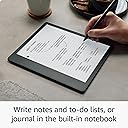
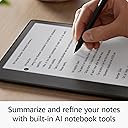
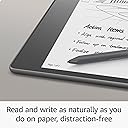
๐๏ธ Kindle Scribe: Where your ideas meet the future of reading and writing.
The Amazon Kindle Scribe (64 GB) combines a premium 10.2โ 300 ppi Paperwhite display with a precision Premium Pen, enabling users to read, write, annotate, and convert handwritten notes to text. Featuring AI notebook tools, expansive battery life lasting up to 12 weeks for reading and 3 weeks for writing, and seamless document markup capabilities, itโs designed for professionals who demand a sleek, distraction-free digital workspace.
| Display | Amazon's 10.2โ Paperwhite display technology with built-in light, 300 ppi, optimized font technology, 16-level gray scale. |
| Size | Device: 7.7โ x 9.0 x .22 (196 x 230 x 5.8mm excluding feet) Premium Pen: 6.4โ x .35โ x .33โ (162 x 8.8 x 8.4 mm). |
| On-Device Storage | 16 GB, 32 GB, or 64 GB. |
| Weight | Device: 15.3oz (433g device only). Actual size and weight may vary by configuration and manufacturing process. Premium Pen: .53oz (15g) |
| Wi-Fi Connectivity | Supports 2.4 GHz and 5.0 GHz networks with support for WEP, WPA, WPA2 and WPA3 security using password authentication or Wi-Fi Protected Setup (WPS). Does not support connecting to ad-hoc (or peer-to-peer) Wi-Fi networks. |
| Content Formats Supported | Kindle Format 8 (AZW3), Kindle (AZW), TXT, PDF, unprotected MOBI, PRC natively; PDF, DOCX, DOC, HTML, EPUB, TXT, RTF, JPEG, GIF, PNG, BMP through conversion; Audible audio format (AAX). Learn more about supported file types for personal documents. |
| Accessibility Features | VoiceView screen reader, available over Bluetooth audio, provides spoken feedback allowing you to navigate your device and read books with text-to-speech (available in English only). Kindle Scribe also includes the ability to invert black and white, adjust font size, font face, line spacing and margins. Learn more about Accessibility for Kindle. |
| Warranty and Service | 1-year limited warranty and service included. Optional 1-year, 2-year or 3-year Extended Warranty available for U.S customers sold separately. Use of Kindle is subject to the terms found here. |
| Setup Technology | Amazon Wi-Fi simple setup automatically connects to your home Wi-Fi network. Learn more about Wi-Fi simple setup. |
| System Requirements | None; fully wireless and doesn't require a computer to download content. |
| Included in the Box | Includes wifi-enabled Kindle Scribe, Basic or Premium Pen, USB-C charging cable, 5 replacement tips, tip replacement tool, and built-in rechargeable battery. |
| Generation | Kindle Scribe 1st generation - 2022 release. |
| Battery Life | For reading, a single charge lasts up to 12 weeks based on a half hour of reading per day, with wireless off and the light setting at 13. For writing, a single charge lasts up to 3 weeks based on a half hour period of writing per day, with wireless off and the light setting at 13. Battery life will vary and may be reduced based on usage and other factors such as Audible audiobook streaming and annotating content. |
| Charge Time | Fully charges in approximately 7 hours from a computer via USB-C cable; or fully charges in approximately 2.5 hours with a 9W USB-C power adapter. |
| Documentation | Learn more about Kindle devices with our Quick Start Guide and Kindle User Guide. |
| Available Color | Tungsten. |
| Software Updates | Learn more about these software security updates. If you already own a Kindle, visit Manage Your Content and Devices for information specific to your device. |
M**M
Love it! Did not make me carsick! Helpful for school. Specifics in review for anyone it might help!
I was hesitant at first because of mixed reviews. I have to say- I love it! Addressing Other Reviews I have to say that a lot of the things people are griping about can be solved by having patience. It is a first-generation device and, while better versions may come, this one is far from basic. I haven't charged it in a week, in spite of using it multiple times. I think if you use it heavily for a few days, you will need to charge it more often- but are we really to the point where having to charge a device once a week is a chief complaint? Every single device I have, including a recent phone alleged to be "top of the line," has some loading issues from time to time. It's part of technology and it will never be flawless. There is a learning curve, but once you start to play around with it, it's pretty user-friendly. Simple Google searches answered most of my questions quickly. I encourage you to form your own opinion. Cost I got it on sale and traded in an old device to make it cheaper, then am doing the monthly payments for the rest, so I found it all reasonable. Watch for sales and utilize monthly payments to help with costs. Reading The reading on this is stellar. If you love Kindles, you will enjoy it. It feels more like a book than a regular Kindle. I have several gadgets I use to prop items up. The HUANUO portable lap laptop desk (https://tinyurl.com/HUANUO-Laptop-Desk ) is my favorite. I also like laying it flat, like a paper, when I'm reading and writing on PDFs. This might surpass my paperwhite for reading, which is saying a lot since that thing is awesome. Writing I love writing on this. I got the premium pen and love using the "fountain pen" setting because it looks beautiful. I've found it really simple to create notebooks and lists. I like using it for brainstorming so I can still handwrite things, but not waste a bunch of paper, and love the undo feature for similar reasons. There's also a function to circle and erase a section, which is neat. Book Notes Others have mentioned not being able to write in book margins, but the notes feature is still nothing to scoff at. For most books, I can tap where I want to make a note, then either handwrite or type (with the on-screen keyboard), and it will leave a tiny note icon in that spot (which is easy to access later). This looks cleaner than writing on the book page, while still being functional and simple. A few books still only let you do the old-school Kindle notes, but those aren't bad either. They are creating more books with writing options. PDFs Being able to write on and highlight PDFs is a game-changer for grad school, so this is proving to be one of the more helpful features (and part of why I got one). You can adjust the margins of the PDF, depending upon if you want it more for reading or notes. I took notes on a PDF and sent it back to myself, then later pulled it up on my desktop for my research. Size, Battery, & General Functionality The size is just right, feeling more like a book or paper, while still being condensed. I was able to repurpose an old planner cover for it. As mentioned above, I feel the battery life is impressive, as it tends to be on all Kindles. I've used it for hours on a multi-day road trip without recharging. It's also the first device I can read and write on in a car without getting carsick! As will be the case with most 2-in-1 technology, you might not get every single facet of each one when you combine them- but I do not feel this to be lacking. USE YOUR DESKTOP for set-up/adjustments I emailed some PDFs and that went well. You can also customize your pdf-sending email. Emailing PDFs to your Kindle email will work for most PDFs and is only limited by your email provider's size restrictions. For larger PDFs, I tried a few different things and finally settled on connecting my Surface tablet/desktop with the Kindle Scribe. I used a USB to USB-C cord and was able to drag and drop files from any folder on my desktop right into the Kindle documents folder. This was the fastest and easiest way to send files that were too big for sending via email. I'm glad I bought it and hope others will form their own opinions and get just as much joy out of it. Like any product that is the first of its kind, there is room for growth, but the updates they send through are great and this is still outstanding.
K**.
Short on functionality this early but fantastic device
I ordered this one as soon as it was announced and hadn't really realized how short on functionality it was going to ship with, but I'm still extremely happy with it so far. First up, it's a very nice Kindle device and is amazing for reading my books on. I adore the screen on it, and it's very snappy and responsive to navigate and write on. The screen size is also wonderful for reading on for my nearly 50 year old eyes that have somehow slipped into reminding me of my age by needing multi-focal lenses. One thing on this front that I miss from my Oasis is the buttons on the margin for page flipping. Those are nice on that device, although I don't hate that they're missing from this one, I just kind of wish they were there. Another thing I'm a little annoyed with is no 4G or 5G built in. I'll live without it and tethering isn't hard these days, but it's an annoyance that didn't need to exist on at least the top end models. I love the writing experience on the device, too. It's not smooth as glass like my iPad Pro with an Apple Pencil, it's much more like writing on paper. But it has a similar quick response to writing input that makes it feel pretty natural and not artificial or annoying, so Amazon have worked that part out well. The functionality is very basic at this point, which is probably the most negative aspect of the device. But it's actually SO basic that I have few doubts that this isn't in the pipeline to be addressed in software updates over the next several months. I would suggest not gambling on that if the cost is prohibitive to you because you should always make your purchase decisions on what you actually get when you buy, and not based on future promises or a naive belief that what you want will be delivered at any point. I can afford to live with my device as is, and it'll still meet the needs of why I bought it, just not optimally, if they don't add what I consider the missing functionality to it. That's not going to be true for everyone. The hardware they've used does support everything needed for all the additional features that I suspect Amazon is planning to add, if they've fully implemented it in the hardware, and at this price point, I believe they have, but I don't know it for sure. Things I think it's missing are: Pressure sensitivity for the pen A wider array of writing tools (drawing tools primarily) Stroke based storage instead of converting strokes to pixels Ability to zoom in and out of notes and drawings Handwriting recognition Related to handwriting recognition, the ability to search note contents More organization options for notes Perhaps a second app to segment writing from drawing functions, but this isn't a want, just a speculation on how they may approach some of these features if they add them Better Kindle integration - like having notes automatically sync to other Kindle devices and apps on other devices, more robust sharing options and integrating with other products like Office apps or drawing exports, etc. Ways to mark up a book with the pen beyond just the current sticky notes. This is a complicated ask because of the way ebooks are formatted, but it isn't unsolvable. My hope is that they are responsive to customer feedback and this becomes the premier Kindle e-ink device, and that they add this functionality to the current devices rather than milking them by only adding them to newer models. It seems more likely that they'll add most or all of the functionality to these devices, because otherwise they'd create a massive amount of customer backlash that they'd have to needlessly overcome, and that just isn't logical or necessary, so I think we'll see at least some of these features added over the coming several months to a year or two.
A**R
Great Product, Very Good for Writing and Keeping Notes
One of the most useful products I have owned in tablet format is a great tool for taking notes. Possibly it could be a great reader for those who are not interested in colored diagram textbooks, etc. It is very power efficient. It allows writing in Pen, Ink Pen, and Pencil modes, and it feels very real.
D**R
Great Reader, Good Writer - It's a First Generation Device
I have been looking at e-ink writing-enabled devices since the Remarkable 1 came out and could never justify anything more expensive than the Mobiscribe. When the Scribe was announced, I pre-ordered it, canceled my order and then bought it anyway. I'm so glad I did! So why did I almost not buy it? I'm a software developer by trade as well as a voracious reader and journaler, and let's face it; any first-generation device is going to have bugs. That's just the way of it. Overall, I am very pleased with the Scribe and use it for hours every day. It has replaced paper planners and journals. The only thing that keeps it from replacing my other Kindles as a reader is that it's a bit big. However, the size is great for writing, so I'm not complaining. Let's look at it as an e-reader. It's great. It's a Kindle. Amazon has had years to perfect the e-ink reading experience and I expected no less. Because I read far more PDF's on this device than I did on earlier Kindles, I have noticed that there seems to be an inconsistency in navigation with PDF's and, more importantly, the writing experience with them. I address this later in the review. So, the Scribe as an e-writer: it's quite good! Not perfect, but very good. Let's look at the three main ways of writing on the Scribe: 1) Annotating Kindle books - to the horror of my husband who thinks paper books are sacrosanct and should never be sullied by ink, I underline, highlight and annotate books. I love buying a used book that someone before me has annotated. I was initially disappointed that the Scribe does not allow annotating in the margins. However, I quickly fell for adding handwritten notes to highlights (and the highlight can be minuscule). It does keep the page clean and the notes can be rather copious. It also creates a file of notes and their references. Finally! I can write in a library book!! 2) Using native Scribe notebooks - based on my experience with the Mobiscribe, I thought that I'd use this the most. I use it hardly at all. It works quite well, but my beef with it is that, unlike the Mobiscribe, you cannot create your own templates or change page formats in the middle of a notebook. (Ahem! Amazon developers!! I'm looking at you!) 3) Annotating PDF's - Oh boy, do I use this extensively! I buy a PDF notebook from an Etsy seller and happily scribble notes to my heart's content. Sadly, this area is where the Scribe is the most buggy. Sometimes (as mentioned above) PDF's simply can't be written on. This appears to arise from three reasons. 1) the PDF wasn't uploaded correctly, 2) the PDF is in a format that the Scribe doesn't know how to handle, 3) the Scribe locks up. So, how to fix these issues? First, just get into the habit of sending PDF's to the Scribe correctly. There are a couple of ways to accomplish this. 1) Use the Send To Kindle web link: https://www.amazon.com/sendtokindle or 2) use the plug-in for Windows or Mac, a link to which can be found on the Send to Kindle page. I'm lazy and prefer the plug-in. I right-click on the file I want uploaded in Windows Explorer -> Send to -> Kindle. It opens a little dialog box which, after the initial log in and choosing Scribe, sends it right to my Scribe. Done. Send via the email address? No. Send via a USB cable? No. Either use the web link or the plug-in and be done with it. 2) PDF formatting issues. I'd love to tell you exactly what the issue is here. I've seen a couple of potential explanations on Reddit, and mistrust them. I'm not sure anyone knows for sure right now. I ran into the issue with a reading journal I bought on Etsy and the seller worked with me until he got it. I didn't ask him what he changed. I'm thinking that, at the moment, the Scribe is so new we're all rattling bones at it, hoping to stumble on the magic. I'm hoping this will be fixed in future software releases. (Yes, Amazon developers, I'm looking at you!) 3) The Scribe simply locks up. This seems to be an issue for those of us who extensively annotate PDFs. I suspect a memory leak issue in the software that gets fixed in a future software release (Yep, one more time, I'm looking at you, Amazon developers). It could be a hardware issue if the processor chip needs to be more powerful. The workarounds I've found depend on how badly the thing has locked up. If the PDF either suddenly can't be written on or if the Scribe throws an error when trying to open a PDF, what frequently works is simply opening a Kindle book and then going back to the PDF. If that doesn't work, a soft reboot from the top menu will usually clear its little brain and get things going again. I have had it lock up so hard that the screen doesn't respond to anything. That means a hard reboot with the switch on the side. It's irritating to have this happen, but again, this is a first generation device, people! I know this review had gotten to the size of a blog post, and if you've gotten to this point thank you for staying with me. There's more. There will always be people who complain that it isn't an iPad. It's not supposed to be an iPad. You want an iPad, buy an iPad. The whole point of e-ink devices is that you don't have the distractions of a young full-blown computer. You read. You write. We're done. To me, the even bigger advantage is that there isn't the eyestrain of a tablet or computer. You're not staring for hours into light emitted into your eyes. I'm not knocking tablets. I was a first generation adopter of the iPad those many years ago and use them happily still. But for reading and now writing, give me an e-ink device. So, given that I've convinced you that a dedicated reader/writer is a good thing, why the Scribe? This is trickier. There are four major brands besides the Scribe, even the cheapest of which has features the Scribe doesn't have. These four are Remarkable (now on Version2), Boox (and they have several devices to choose from), Ratta Supernote (a few devices), and MobiScribe. I'd love to say I can review all four brands and compare/contrast. I've used the Remarkable Version 1 and own both the original MobiScribe and the MobiScribe Origin. Even the MobiScribe, the cheapest of the four, can do handwriting-to-text which the Scribe can't do (ahem). So why would I go for the Scribe? The biggest reason is the Kindle reading experience. Kindle books can be read on the other devices, but with varying degrees of ease. Because the Scribe was built by the people who built the Kindle, I expected Kindle books to be far better integrated and they are. At the moment, I'd say the Scribe is a perfect device for dedicated Kindle users. If, however, you predominantly read PDFs, probably another device would be a better choice. At least for now. The other reason the Scribe may be a good choice is the power of Amazon behind it. Let's face it, if Amazon chooses to make the Scribe a success, listens to the early adopters and studies the abilities of the competition, they have the developmental horsepower to make this thing fly. If, however, this first Scribe is a one-hit-wonder and Amazon decides that the market isn't big enough to justify the development costs, this thing is going to sink like the proverbial stone and I, for one, will be mad as a wet hen. This is, unfortunately, a real possibility. The number of consumers who want a dedicated e-ink writer are never going to be as great as those who want a more all-purpose tablet. Amazon may decide that the e-ink reader market is where they're going to stay. If that's their decision, I will cry. Loudly. Really loudly. If you made it this far, thanks for staying with me. With all its quirks, I love the Scribe. I hope you will, too.
R**K
Not sure if I should purchase it, but happy I did!
Wanting the Kindle Scribe when I saw it hit the market. However, after reading many reviews, it did not look like it would fit my needs. When I saw the Scribe on the Last Prime Day (2023) I was torn about making the purchase. A new software update had recently been released and offered a lot more of the options I was looking for. I took the gamble and purchased it, hoping it was not a mistake. The experience has been amazing. Completely impressed with the Kindle Scribe! As one that has used a tablet for reading my kindle books, the scribe is very nice. But the handwriting and pen use is incredibly gratifying. The writing is smooth and very natural. I am not using paper notebooks for meetings anymore. My 4-year-old son wants to always borrow my Scribe to draw with. I love that I can take and read notes in full direct sunlight, a major win for me. I leave my back light on full 99% of the time. The battery lasts me about 7-10 days before I feel the need to charge it. My only issues so far are I have had to replace the nib on the pen twice. It may have something to do with my 4-year-old and I are using the Scribe for sketching and the 4yr oldโs heavy hand. If any of the development team reads this, I would like to have a few sketching tools available, specifically a blend or smudge tool. Additionally, additional shades of grey for the highlight feature. Update to review after 3-4 months - I am still happy with the Scribe! I wanted to see if there was a way to make sure my notebooks are getting backed up in to my account? I am not sure what that looks like but to have my notebooks available in a cloud format on the web or PC is becoming be very important to me. October 2024 - Still Using it Daily โ Outlook or Calendar Integration Would Make It Perfect! Iโm still using my Kindle Scribe every day for notes and meetings, and it continues to impress me. The ease of jotting down quick notes and sketching out ideas has streamlined my day-to-day tasks. One feature that would make the Scribe an unbeatable tool is the option to integrate Outlook or another calendar system. Having that functionality would turn the Scribe into the ultimate planner, perfect for scheduling and note-taking in one device. The Kindle Scribe remains an excellent investment, and I look forward to seeing any future updates that could bring it even closer to the ultimate productivity device!
K**R
Early Adopter? Gen 1 not ready, cumbersome to use, unintuitive, and not worth it.
I love my other Kindles (Signature Paperwhite and Oasis). And I REALLY wanted and tried hard to love this one and find a way to incorporate it into my day to day because, like many, the idea to combine my books, my audible, and the myriad notebooks I carry around (and lose) in a single tablet is a trifecta experience. But Generation 1 is definitely not worth it. I was able to get it substantially cheaper thanks to a holiday sale and a trade in, and if it's not worth it at almost 50% off, it's definitely not worth it at full price. Here's why. Using it as a paper notebook replacement is cumbersome, unintuitive, and time consuming. If you imagine how many people work - a textbook, laptop, or other resource on one side and a notebook for taking notes on the other, that's a process familiar to most and flows well. My thinking was that "Finally, I can keep all my notes well organized, add more details to my highlights, etc." We'll, you can't. This Kindle works the same as every kindle or fire tablet when taking notes - you highlight, add the note, with the only difference here being that you can do so with a Stylus. The real problem is that this space is limited to what you see in the picture. Even on the other kindle platforms you can type forever, or use voice, to make long notes. Here, you can't - you're limited to that tiny tiny space and can't expand it. Basically, this equates to replacing your paper notebook with tiny post it notes. It's completely impractical to say the least. You also can't change the background of this area like you can in the "notebook" support, which means no dotted or lines, etc. You're literally cramming everything onto the digital version of a Post-it-Note. So then I thought, "Ok, I'll setup a notebook and just switch between the book and the notebook, and at least the notebook will let me write as much as I want / as many pages / page background theme, etc. But no, there is no way to seamlessly switch between the book you're referencing and this kindle's notebook feature. You have to close the book, start up a notebook, find the page where the note should go, close it, start the book back up again, and keep going. If you made a manual reference in your notebook as to where in the book this is relevant, this reference becomes completely useless the minute you change your font size or orientation. As a Japanese language student, I was particularly excited about being able to practice kanji as I can't imagine acres of trees that have died just so I can practice writing characters. And, I was particularly excited that I could do so on the page of the Japanese textbook I was referencing. But alas, no again. For some reason this kindle would not work well with my eTextbooks. Some would not open, some I characters wouldn't show up. Performance wise, this tablet is abysmal. When under small to moderate load, the time it takes for pen strokes to register can be counted in full seconds. Switching screens, opening books, etc, are noticeably slower compared to other kindle versions. For students especially who need to take more notes that will fill a sticky note, and for language students especially too, this tablet completely misses the mark. The software, in general, is lacking considerably with relatively few options compared to competing eInk tablets. Amazon says so itself in the project description with comments like "Regular software updates." I want this tablet to work so all my Amazon subscriptions, books, etc, and all my notes / notebooks can accompany me, so I'll Try Gen 2 when it comes out. Honestly, this version feels like a pre-release alpha version or prototype a small group would use to give feedback on. It was released way too early and in no way is it ready for the wild. To overcome the shortcomings, I sent it back, and I use my oasis with my Remarkable 2, which feels much more natural, with my Oasis. Well, at least I'm down to two high quality products in the meantime, but looking forward to seeing if Amazon can revamp this to make it an equally usable environment. Aside from the tablet itself, I must say, the "Premium Leather Cover" that comes with the bundle is just junk. I wouldn't pay 71 cents for it much less 71 dollars. Imagine the thickness of a normal piece of leather. Amazon shaved that into 100 layers and pasted it on cardboard, and the other side is felt (so not an all leather case). It really is disappointing what a low quality item they tried to throw into making their "bundle." I'll be buying a 3rd party cover for it if I checkout later generations.
C**T
It does a lot, but. . .
Update January 4, 2025. I turned on my Kindle Scribe to jot down a note, when what to my wondering eyes should appear but a new software upgrade that made my old scribe appear shiny and new. I'd read some articles that said the software upgrade was going to happen but I was skeptical because why wouldn't Amazon want to make customers upgrade to the newest model. The more I have used my scribe the more I like it. Now with the upgraded features I like it all the more. Now my scribe does most of the things I wished it could do when I wrote my first review. I am appreciative of Amazon making the updates in the new Kindle scribe available to us early adopters of the scribe. Because of what you have done I'll likely be a Kindle e-book/notebook customer for life. Review completed early 2024 The Kindle Scribe does a lot but not everything I wish it could do. My first focused use of the Scribe was the notebook. I took notes from a physical paperback math book (not available digitally) and then worked practice problems at the end of the section/chapter using the Scribe as my pencil and paper. The scribe's screen froze on me many times and the only way to fix the situation was to restart the Kindle. This seemed to happen most often when I was using the lasso tool to copy and paste something to a new page. When taking notes, I'm disappointed that I cannot copy text and paste it into the sticky note. The only way to do this is to type or write the quote on the sticky note and if the note covers up the text you can't do that without writing the quote on a piece of paper and then typing it into the sticky note. When creating a new notebook, you can choose a template, however, every page in the notebook will have the same template. You cannot change templates within a notebook- that I know of. You can type a sticky note and write a sticky note in the same location, but you cannot write and type on the same sticky note. I wish I could paste a quote on a sticky note and then write my thoughts about the quote all on the same sticky note. Having to always tap the hand or the pen to switch from writing to the ability to turn to the next page is a nuisance. I found it interrupted my writing flow to have to tap to switch to the hand, then tap to turn the page, then tap to change back to pen to write. However, I will say that the more I executed this page turn/write sequence the less bothersome it became. I wish that a page turn tap could exist at the bottom corners of the page so all you'd have to do is tap to turn the page and then keep writing. I also noticed that with using the notebook, the battery drains faster. This is a Kindle I know listening and reading books is going to be great! I haven't done that much yet as I wanted to see if the notebook would meet my need to write notes and complete practice exercises. It can and it does a good job of that, I no longer need scratch paper when solving equations. I think with the integration of other apps like Readwise and Notion I'll be able to read write/type my thoughts, and consolidate it all into a central location that I can refer to when needed. Finally, I understand that the Kindle Scribe is a tool. As with any other tool you have to know when/how to use it to get the the most benefit from it. This is not at the level where it replaces the ease of writing with paper and pencil- in my opinion. (It probably took me twice as long to write notes and do practice problems on the Kindle vs writing with pencil and paper.) The Scribe does make it easier along with other tools to find what you write so that you can further synthesize your thoughts into concise, pithy summaries you can locate and review at a later date. At least that's what I'm hoping it will do. I concede that since this was my first time using the notebook, I had a bit of a learning curve. With time it may not take me as long to write with the Scribe. I rated the Kindle Scribe a 5 because it does what it says it will do. It just doesn't do all the things I wish it would do- yet. It does a lot, but don't throw your pencil and paper away.
A**E
Incredible hardware, disappointing software
+ Best hardware for the money + Warmth and brightness sliders for the back light + Pen requires no batteries, is light, and writes with minimal latency + Great battery life (dropped just 2% overnight) + Easy export of annotated documents to email - Writable pdfs necessitate minutes-long process of uploading them to Amazon's cloud on another device, then downloading them on the Scribe - Writing Toolbar always on screen while writing on a pdf - No landscape orientation option The Kindle Scribe has a lot of potential. The hardware is amazing. None of its competitors seem to be able to match the hardware--a 10.3" screen; a backlight with not only adjustable brightness, but adjustable warmth; a writable surface, long battery life and a responsive stylus that does not require batteries--for the price. In fact, it's difficult to find another eReader that checks all of these boxes at all. It's thin, relatively light, and more comfortable to hold than a hardcover book of the same height and width, though re-learning how to hold it has been a bit of an adjustment coming from a Kindle Paperwhite and Kindle Fire 8. For me, the larger display more than makes up for the slight hit to ergonomics. My only quibble with the hardware is that erasing with the premium pen takes a surprising amount of force. Applying sufficient pressure to to depress the eraser button and dragging the pen feels to me like I'm going to scratch the screen. I haven't yet, but using the shortcut button to erase with the nib is much more pleasant and requires much less pressure. Other than that, it's difficult to think of a way to improve the hardware. Particularly, reading at night with the back light's warmth adjusted to filter out blue light is pleasant and unlike any other device I've used. It's excellent. The software, though, is where it becomes evident that this is a first-gen product on its first firmware revision. The big one for me: Although the promotions and ads are correct that you can write on pdfs on the Scribe, **you can only write on pdfs that you send to your device through the Amazon portal in a web browser on another device.** If you simply drag and drop a pdf onto the device over USB, then that pdf is going to be read-only. This reliance on Amazon's cloud service was not mentioned in the product description or advertising anywhere (**EDIT: Amazon has revised their product page to address this omission), is annoying, and raises some serious concerns about privacy. If you're sending an ebook in pdf form (typically 5-6mb), then the process of opening your browser, dragging and dropping it into the Amazon portal, waiting for it to upload, then opening your kindle, waiting for it to sync, finding the new item, clicking on it, waiting for it to download, and opening it is cumbersome but tolerable. If you're hoping to write on an even larger file like a scan of a book, though, get comfortable: the 50mb scan I uploaded took twelve minutes! Over a 500mb/s fiberoptic connection! Having to use proprietary web software to get usable pdfs to a separate device feels like a holdover from 2005. Having it take several minutes feels like a holdover from 1998. Aside from being unwieldy, dependence on a third-party cloud for writable pdfs presents a privacy problem. One thing I was hoping to do with the Scribe was grade student papers. I was picturing simply dumping a folder full of them onto the Scribe via USB or even WiFi over my own network. The first isn't possible and the second now seems like a distant dream. I can't in good conscience send my students' work to Amazon's servers. So I won't. **EDIT**: Amazon has since updated their product description attesting to the security of their servers. I believe them! But I still wouldn't feel comfortable managing students' work on the Scribe unless/until I'm able to transfer them back and forth over USB. The other issue with writable pdfs is that the Writing Toolbar must be on the screen if you want to mark up a pdf using the pen. This means looking at a dime-sized icon of a pen on every single page of whatever you're reading. Sure, there's an option to hide the icon, but doing so reduces the function of the pen to mere pointing and scrolling. If you want to write, then you're going to have to tolerate the icon. Why not offer an option to hide it while remembering its previously set function? Why not at least make it smaller and have it expand upon tapping it? Maybe it won't bother you, but I find it incredibly distracting. Lastly, there's no option to read in landscape mode, meaning there's no way to hold the Kindle on its side to view two pages at once as you might on an iPad. You're locked into portrait mode. Being able to hold the tablet sideways would've been welcome while reading lying down, which is a little tricky with the screen as tall as it is. It's also too tall for the shelf of the treadmill I like to use while reading sometimes, but a portrait mode option would've been fine. Hopefully this is an option that will become available as the Scribe firmware matures. If none of these three software shortcomings bothers you, then I don't think you'll find a better deal for comparable hardware. For me, though, they may be deal-breakers, which is too bad since the device itself is by far the best I've ever used to read ebooks.
Trustpilot
1 week ago
4 days ago