Buy anything from 5,000+ international stores. One checkout price. No surprise fees. Join 2M+ shoppers on Desertcart.
Desertcart purchases this item on your behalf and handles shipping, customs, and support to Kyrgyzstan.
🎨 Dial up your digital art game—create faster, freer, and smoother than ever!
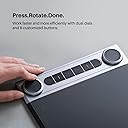
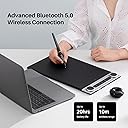
The HUION Inspiroy Dial 2 is a sleek, wireless graphics tablet featuring a large 10.5x6.56 inch active area, dual programmable dials, and a battery-free stylus with PenTech 3.0 for natural, precise drawing. With Bluetooth 5.0 connectivity offering up to 18 hours of use, it supports both right- and left-handed users and is compatible across Mac, Windows, Linux, and Android platforms. Ideal for professional artists and designers seeking a portable, efficient, and customizable digital drawing experience.


| ASIN | B0B1V1JBNX |
| Active Surface Area | 10.5 x 6.56 inch |
| Additional Features | 60° Tilt Support, Programmable Press Key |
| Best Sellers Rank | #95 in Computer Graphics Tablets |
| Brand | HUION |
| Built-In Media | Pen Tablet, Battery-free Pen, USB-C Cable, Pen Holder, PH05F, Standard Nib x 5, Felt Nib x 5, Nib Clip, Quick Start Guide |
| Color | Black+Silver |
| Compatible Devices | Android Mobiles, Linux PC and laptops, Macbook, iMac, Macbook Pro, Macbook Air, Tablet, Windows PC and laptops |
| Connectivity Technology | Bluetooth, USB |
| Customer Reviews | 4.5 out of 5 stars 655 Reviews |
| Display Type | LCD |
| External Testing Certification | Não aplicável |
| Item Dimensions L x W | 10.5"L x 6.56"W |
| Item Type Name | Computer Graphics Tablets |
| Item Weight | 1.5 Pounds |
| Manufacturer | ShenZhen Huion Animation Technology Co., LTD |
| Mfr Part Number | Q630M |
| Model Name | Inspiroy Dial 2 |
| Model Number | Q630M |
| Operating System | Android 6.0 and above, ChromeOS 88 or later(Wired&Bluetooth), Linux (Ubuntu), Mac OS 10.12 and above, Windows 7 and above Operating System Android 6.0 and above, ChromeOS 88 or later(Wired&Bluetooth), Linux (Ubuntu), Mac OS 10.12 and above, Windows 7 and above See more |
| Pressure Sensitivity | 8192 Levels |
| Screen Size | 11 |
| Special Feature | 60° Tilt Support, Programmable Press Key |
| Specific Uses For Product | Designing, Drawing, Painting |
| Target Audience | Student, Teacher |
| Warranty Description | All Huion products will be covered by 1-year warranty from the purchase date, and 30-days windows to request a return or refund for free. |
M**W
Very Portable Drawing Tablet With a Great Battery Life and Awesome Dial
I was looking for something that I could take with me that didn't require all of the plugs and wires of my Huion Kamvas Pro 16. Don't get me wrong, I love the Pro 16 when I'm drawing at my desk, but even though it's light and a good size to bring along, all of the wires/power cord are not very travel-friendly. That's where the Inspiroy Dial comes in. I'm able to throw it and my laptop into my messenger bag and can pull it out anywhere and digitally draw/paint/animate without issue. It being wireless and the dial are two of the tablets greatest features. Here are the pros and cons I've come up with after using the tablet: Pros: 1. Wireless - When I first received the tablet, I plugged it in and charged it fully. Since that first day, I haven't had it plugged in. I've used it 3-4 hours a day in Photoshop CC 2020 and it is still at 60% battery life. 2. Dial - I love this dial. I left it at the default settings for Photoshop, which are zoom in/out, increase/decrease brush size, scroll up/down when you're zoomed in on your canvas. It makes the painting process so much faster. 3. The shortcut buttons - This is something I loved about my Pro 16, having the shortcut buttons on the tablet. Since I purchased the Pro 16 a while ago, Huion has updated its software to allow you to program different shortcuts for different software, which is great. Previously, you either had to change your shortcuts in each of your programs to be the same (which is what I did), or you had to change it in the Huion software every time you switched programs. They've fixed that problem with their latest software update and it works well. 4. Price - Since I already had a tablet, I couldn't justify spending a lot on a new tablet just so I could use it when I'm out and about. The price of the Inspiroy Dial is low enough where I didn't need to even think about it. It would also be a great starter tablet for any aspiring artists looking to try digital drawing/painting. I wish this had been available when I had started out, but back then there was only the really expensive Wacom tablets, which, in my opinion, this tablet rivals easily and is a lot less expensive. 5. The drawing surface - Unlike the Pro 16, which is a little more slick, the Inspiroy Dial has a tooth to it that is more like drawing on paper. Of course, it's not exactly like paper, but nothing other than paper really is. 6. Responsiveness - I thought there might be issues with delay when using this tablet wirelessly, but there isn't. My strokes on screen keep up with my pen movement on the tablet. 7. Works with all of the programs I use - I use Photoshop CC 2020 for painting/sketching and I use Blender for 3D modeling and animation. It works well with both and I experience no lag or other weird issues in either piece of software. Cons: 1. Sometimes the tablet disconnects. It maybe happens once every few hours or so, but not enough where I'd consider it a nuisance. I don't know if this is an issue with my computer (I use a Mid-2014 Macbook Pro) because I have other wireless things that disconnect from the laptop also. So, this may or may not be a con of the tablet, but I thought I'd mention it and give context of why it might be happening with me. 2. Size of the tablet - it's both a pro and con. It's a pro because it allows room for the dial and the shortcut buttons. It's a con because I like to use it in my lap even when I'm at my desk. If it was just a bit smaller, I'd like the tablet even more. 3. Getting used to drawing on the tablet, but looking up at a monitor - It's been years since I've drawn with this type of tablet, so it took a bit of practice to get back into it, but once I did, it wasn't that bad. If you've never done it before, it will take practice. If you're looking for a reasonably-priced starter tablet or a tablet you can use for drawing anywhere other than at your desk, I think this is the best option available. I've included a picture of the tablet size in relation to my laptop (they're about the same size) and a work-in-progress painting I'm using the tablet to create in Photoshop.
P**D
I love this tablet PLUS UPDATE!
I purchased this item to replace my old Intuos 4 and I gotta say this is the first non-Wacom pen tablet that I've used that matches it in terms of build quality and drawing experience. This tablet is so nice to use, the line quality is great, the surface is a perfect middle ground of having a good amount of texture to draw on without wearing through the nib too fast, and the dials are an amazing addition to my work process. I was worried they might have been a bit gimmicky at first, but they really do improve overall workflow and user experience. I feel like I'm zipping and zooming around the canvas at the speed of light, saving time and making the overall drawing process so enjoyable (the dials also make a pleasing sound when your turn them so bonus points for that haha). The build quality is nice and solid, it's slim and doesn't take up too much space while also having a decent weight to it. I'm not worried that it's gonna snap in half or a dial is gonna pop off. The bottom of the device is made out of metal, which really adds to the higher quality feel. The fact that this device is about half the price of the Intuos Pro M is such a good deal. Wouldn't recommend to an absolute beginner due to the price point, but if you are in the market to upgrade from your starter tablet, don't overlook this bad boy. The only issue I had was that the Bluetooth was a little wonky out of the box, but Huion has a firmware update you can download that fixes the issue immediately so I can't complain. Really solid device. UPDATE 12/30/2023 Ok, so I've had this device for a little over a year now and I wanted to make an update for anyone wondering how this device holds up over time. I am happy to announce that, after a full year of pretty regular use, it still works just as well as the day I got it! For clarity, I keep it at my desk permanently, I don't travel with it so I can't speak to how well it does while being banged around in a bag all the time, but yeah I've had zero issues. Works great, battery for the bluetooth function is still good and I haven't had any connection issues, the surface has held up and doesn't have a ton of scratches or dents (I have a light drawing hand though), and I haven't had any issues with the dials, shortkeys, or pen. The biggest downside to this tablet is the fact that it's basically ruined every other drawing tablet I have tried since lol. I've tested cheaper graphics tablets and even some displays, but using all of them just made me want to go back to the Dial 2. You can REALLY feel the difference in quality between this device and some of Huion's more affordable options. I would still definitely recommend this device to anyone looking to upgrade graphics tablets.
T**A
Unparalleled value, excellent performance
My workflow demands a drawing tablet, so I've had several in the past two decades: two from Wacom, one from Xencelabs, and this Huion one. All have been excellent. Wacom has the best galaxy of OEM and third-party accessories such as pen sleeves and pen nibs. (But those prices.) Xencelabs has the excellent Quick Keys, a separate wheel/button control with an OLED screen so you don't have to memorize which button does what. And Huion? It's the best value of the three. Performance (sensitivity, versatility, robust software, drawing ability) is right there with the other two. So is build quality--no bending or creaking, and a satisfying weight due to its aluminum frame. Wireless Bluetooth connection is rock-solid. And the price is the best. At a lower price you get an arguably more advanced design. Two clicky built-in knobs and five other controls make this a supremely versatile tablet. The knobs can do everything from brush size to system volume control, changing functions automatically according to which software you're using at the time. There's one negative: There's little to no third-party ecosystem for accessories. You can use Wacom pens and nibs with Xencelab tablets, but you can't do the same with Huion. It's their stuff or nobody's. So now I have all these Wacom/Xencelab nibs sitting around. Outside of that nitpick, this Huion tablet is now my daily driver. That's the highest praise I can give a drawing tablet.
H**O
Perfect product but box design is not battery friendly
The product itself is absolutely perfect, no complaints about the quality of the product and the feeling it gives while drawing, but the insides of the box have a so bad design that when storing the tablet back in the box again, it turns itself on. The lateral button gets pressed so easily that the tablet arrived on a 0% of battery after removing the factory wrapping, something extremely unhealthy for a battery for a long period of time, it's still usable wired, but because of that packaging, my battery was so damaged that the battery is draining faster than half of the hours promised.
C**0
An Amazing Tablet at a Great Price
I am a student artist who has been trying to become better at digital art for a very long time. I have previously purchased the Huion GT-191 KAMVAS drawing tablet, which I have thoroughly enjoyed and used. I was wary at first with this item, as unlike the KAMVAS, this tablet does not draw directly onto the screen. Instead, you draw on a black pad that creates the art on a monitor. This intimidated me at first, as I wasn't sure if I would be able to have the coordination to make art this way. Needless to say, this tablet greatly surpassed my expectations. The tablet was working right out of the box and allowed me to start instantly. The pen felt great in my hand and it not needing batteries was very convenient. Upon using the tablet, I found that there was little disconnect with the tablet and my monitor. Unlike other tablets I've used that move the mouse relative to where you put down the pen and take a stroke, this tablet maps the monitor directly, meaning that putting my pen down in one spot will always place it in the same spot on my monitor. It wasn't a glorified mouse, but an easy to use, great tablet. I created multiple digital works in a completely new to me software and they were amazing to make. I haven't drawn digitally in years, being much younger and inexperienced when I did. This tablet not only made me excited to draw again, but I could actually see improvement as I quickly adapted to it. This isn't even mentioning the buttons and knob, which served as great, quick shortcuts to maneuver my digital canvas with. This tablet defied my expectations in every way. If you are looking for a reasonably priced, great drawing tablet, get this one. It is easy to learn and an amazing bang for your buck. While I did not need to contact Huion customer service during my time with this tablet, I would be doing a disservice to not note their exceptional service. Huion has always helped me with past products and stands today as one of the best support systems I've seen in a company. This tablet is amazing in nearly every aspect and I implore that others check it out, especially beginners.
S**Y
Amazing quality, incredible for aniamtors
Best drawing tablet I've ever had , the feel, the quality, it's absolutely amazing for animation because I can assign the wheel to do frame scrolls. I've had mine for 4 years and I highly recommend it
J**Z
Good gadget
At the beginning was a little frustrating its use, but now, I figured out how to take the advantage of this device
Z**K
From a Photoshop editing perspective
I bought this back in May and wanted to try it with an inexpensive tablet to see if it would improve my workflow and lessen fatigue. I knew initially that there would be a learning curve. I don't use it every day, but once the rotary dial is set and the buttons are configured, there is some improvement in getting accurate brush strokes. Tablet Surface: The tablet surface has plenty of space even for my XL hands. You do have to wear the sleeve as it's sensitive enough it'll move the mouse cursor but most sleeves sold on the market for $10 seems to work fine for my large hand. I use the left hand to control the dials and the buttons. The rotary dial has an audible but light-click noise. If I move fast during any workflow, sometimes it will not register, forcing me to slow down. Each dial has three settings that can be customized from basic Photoshop and Lightroom actions, keyboard shortcuts, mouse, and other application-specific shortcuts. And unfortunately, there's no unlimited shortcuts for Photoshop either but for my usage, it's perfectly okay. Pen: Speaking of shortcuts, there are two buttons that you can customize with different shortcuts as well. On the bottom button, I have it to have the brush properties popup. While the top for undo. The pen needs to be closer to the tablet for it to register the buttons so it cannot be left in the air to use it. I've yet to replace the nib yet. When I want a more pencil-like drag feel, I'll use the felt nibs. It doesn't glide as easily (but won't scratch the tablet surface) but unless I'm simply line drawing with the pen tool or browsing then 90% of the time, I have the felt nib on. Overall Impression: I would give yourself a few weeks to get used to it. It's not a magical tool if you've never used a tablet like me, and it would be less frustrating. At first, you'll feel like the tablet is slowing you down, but until you get used to how the sensitivity (adjustable) is for drawing and using it for various applications, you'll hit the wrong buttons and feel like you're using a new mouse all over again. Accuracy wise, I feel it's excellent. No major issues yet and Huion seems to keep this software up to date.
A**Z
Professional yet affordable
I have used many graphic tablets in my life and this is by far one of my absolute favorites. The build quality is amazing, everything about this device feels premium, from the pen down to the dial. Speaking of the Dial, it is brilliant and works well with every piece of professional software I use on a daily basis (adobe suite + affinity suite). I am a fan of smart keys and the dial as it means I'm able to do more with the tablet without having to reach for my mouse or keyboard, and when you are drawing and designing all day reducing unnecessary movement is a godsend. Also, Huion has really upped their game with their software over the past few years, and whilst it is not as feature-rich as their competitors, it is still very good. Huion keeps on finding ways to innovate and experiment with their tablets, whereas Wacom is just sitting on their behinds counting money and letting their build quality drop. I strongly recommend this especially as it is a professional grade piece of hardware that is so much more affordable than even the most basic Wacom tablet.
V**V
Value for money and long lasting
Had it for 3 years! I could still tell you that I just bought it a week ago. That's how good it is! But one suggestion that don't get it for your first purchase because I did! And I feel like it's too big for my table and I've to move my hand alot so I'm not telling you buy cheap but buy a bit smaller. To know what will be good for you think of it as a drawing book now on how big of a paper are you comfortable drawing? I think you know what I'm telling you here. I'm used to a4 but I enjoy small sketchbooks so that's why I'm struggling a bit. I hope I helped and if you still wanna buy it, it's amazing! No scratches. Pressure works amazing. I do use it wired because when the battery level goes down by one it stops working for 1 sec and then back on and sometimes if you put it's dongle in a slow adapter then it malfunctions sometimes so wired is best. If mistakenly dropped it too. The pad and the pen, nothing!
A**R
Must read if on Windows 11
Great build, feels solid. Nice clicky dials. No perceivable latency when using bluetooth. On windows 11: initially it would not detect the tablet when trying to pair with bluetooth. In W11, Fix: Under Device settings, select Bluetooth devices discovery. > Choose Advanced from the drop-down list to show all types of Bluetooth devices.
T**A
produto excelente!
a mesa atende às expectativas, a precisão é excelente.
S**.
Value for money product..
I had 2 Wacom’s but the driver on Mac for Wacom is bad… this one works way better…. Quality compared to price is great. Use of ease and it value for money…
Trustpilot
5 days ago
1 month ago