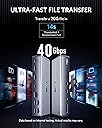
⚡ Elevate your workspace — power, speed, and display like never before!
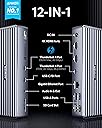
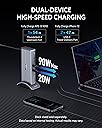
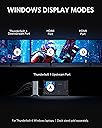
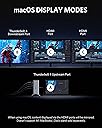
The Anker 777 Thunderbolt Docking Station is a premium 12-in-1 hub designed for Windows 10 Thunderbolt 4 laptops and compatible MacBooks. It delivers up to 90W laptop charging, supports a single 8K and triple 4K display output, and offers ultra-fast 10Gbps data transfer. With versatile ports including HDMI, Ethernet, SD card, and audio, it transforms your setup into a streamlined productivity powerhouse.


| ASIN | B0928W3XHD |
| Best Sellers Rank | #167,084 in Electronics ( See Top 100 in Electronics ) #1,491 in Laptop Docking Stations |
| Brand | Anker |
| Color | Gray |
| Compatible Devices | Laptop/Personal Computer |
| Customer Reviews | 3.7 out of 5 stars 684 Reviews |
| Hardware Interface | 3.5mm Audio, Ethernet, HDMI , Thunderbolt 4 , USB 2.0 Type A, USB 3.1 Type A, USB 3.1 Type C |
| Input Voltage | 120 Volts (AC) |
| Item Dimensions L x W x H | 2.9"L x 1.3"W x 7.3"H |
| Manufacturer | Anker |
| Mfr Part Number | A8397 |
| Model Number | A8397 |
| Number of Ports | 12 |
| Product Dimensions | 2.9"L x 1.3"W x 7.3"H |
| Total Number of HDMI Ports | 2 |
| Total USB Ports | 4 |
| Total Usb Ports | 4 |
| UPC | 194644066697 |
| Warranty Description | 18 month warranty |
| Wattage | 90 watts |
S**D
Nice docking station for Dell XPS 13
I am very happy with this docking station. I've always used a desktop tower at home, and I talked to people who used a notebook with a docking station, so I decided to give it a try when I needed to purchase a new computer. I was pretty apprehensive about trying this setup, but I am very happy with it. Here's what I have plugged in to this docking station: 32 inch Dell monitor, Blue Yeti mic, camera with a second mic, USB hub, 3.5mm speakers, Logitech wireless mouse, Logitech wireless trackball, Microsoft wireless keyboard, ethernet cable, Brother MFC printer, and it is powering my Dell XPS 13 as well as providing all of the connections. It does it all, and everything works well. There's one issue, but I don't know if it is the fault of the docking station, the XPS 13, or Windows 11. The computer will not go to sleep with this device or shut down the monitor. If I sleep it or lock the screen, it will just sit there and turn all of the screens on and off every ten seconds or so. The solution is to turn the docking station off when I'm not using it. When I do that, the XPS 13 and external monitor both go to sleep within a few minutes, and all is well. It's not too much of an inconvenience to tap the on-off button on the Anker, and when I flip everything back on, everything wakes up as expected and Windows puts everything back on the appropriate screen in the previous location. As noted, however, it isn't clear which device is at fault.
J**5
With two 4k monitors, one keeps blanking out. Happened on both Anker stations I bought.
I purchased two of these Anker 777 Thunderbolt Docking Stations and was really hoping they would work well as they had all the features I wanted: audio output, two 4k HDMI outputs, and ThunderBolt 4. I connected one to my home office with two 4k monitors -- but it caused the monitor connected to the HDMI 1 output to blank out frequently. It would blank out for 5s or more at random, usually at least 3 times every 5 minutes. Sometimes it would blank out much more frequently and sometimes I would have to disconnect the docking station and reconnect it to my laptop. I tried several things to fix the problem -- changing cables, switching monitors, even trying a 3rd 4k monitor of a different brand in place of the two 4k monitors I had -- but the monitor connected to the HDMI 1 output on the docking station would keep blanking out. I connected my second Anker 777 Thunderbolt Docking Station in my office with two QHD monitors, and that worked perfectly. So I brought this second unit home to connect it to the two 4k monitors, and it too started blanking out the HDMI 1 connected 4k monitor at a similar rate as the first Anker 777 Thunderbolt Docking Station. This made the units unusable for me and thus I had to return both units. Based on my experience, the units I received appear to work well with QHD monitors, but not 4k monitors. I replaced them with the Dell WD22TB4 docking station. The Dell does not have an audio output, so I bought a USB audio adapter (costs less than $10) and connected that to a USB output on the docking station to get audio output capability. I have had the Dell docking station for over a month now, and everything has worked well so far. Six months later will Dell docking station: I purchased a second Dell WD22TB4 docking station shortly after the initial review, and both are running perfectly.
K**Z
IT WORKS. WHAT ELSE MATTERS.
I bought this product in November of 2021. I am using it with a new Dell XPS w/ 11gen Intel I7 and Windows 10 pro. I have two displays connected. Display 1 is an LG 32” UHD HDR10 Monitor with AMD FreeSync. Display 2 is an older Dell 27" 1080p ultrawide. Both displays connect via an HDMI cable. I have connected the Apex 12 via a Thunderbolt USB-C cable to my XPS laptop.. In all honesty, there is not all that much to say. It works exactly as advertised. It was very simple to unbox and connect and all there was to do after all the cables were connected was to press the "ON" button. Everything connected seamlessly and there were no issues. I have been using this daily for the past two weeks and have had no issues. Positives. First, my new laptop has a 3480x2160 UHD display. I had a prior Anker docking station that only supported 1080p which was the primary why I upgraded to the new Apex 12. The Apex 12 seems to handle the higher resolution with no issues. I was having a lot of issues when using my old docking station while trying to use my video editing and creation software. Those issues are now gone. Second, the Thunderbolt-4 interface from the Apex 12 to my laptop is really nice. With my older Anker docking station I had a USB cable connecting to my laptop, a power supply for the laptop and a power supply for the docking station. Now I have one power supply to the Apex 12 and a USB C cable connecting the Apex 12 to the laptop. Everything is much simplified. Third, I have a Toshiba Canvio Advance 4TB external hard disk that I keep a lot of my files on. I do a lot of video creation and editing and the loading and saving of files from the hard disk connected to the docking station seems to be much improved. I can't really quantify it, but it seems faster. Fourth, I love the USB-C port on the front for quickly connecting my phone or other devices. It's nice not having to hunt for a port on the back of the device. Being on the front is super handy. Negatives? My primary complaint is the stand that allows the unit to stand up vertically must be bought separately. In my opinion it should have come with the Apex 12 as it is really needed and I did buy it after receiving and setting up the product. My minor complaint is I wish it had more USB-A high speed ports. The Apex 12 has 4 USB-A ports on the rear (2 high speed and 2 standard). I still have peripherals that I need to connect (microphone, Logitech camera, external hard drive, etc.) that use USB-A so having more than 2 high speed ports would help. I will note a couple items of additional issues that I have encountered. Issue 1 is an intermittent warning from my Dell completer stating that the power being supplied by the Apex 12 was not sufficient and to change power supplies. At first this a mildly annoying, but then the notices were constant and it was really pissing me off. And suddenly the notices have gone away. So not sure at all what the issue was or is or whether it will come back. That said, there was never an adverse issue with my computer or it's functions. The battery charged up nicely and no functions were lost or impaired. So who knows. That issue, for now, is gone. Issue 2 is my older (2014-2015 era) Dell Monitor. If I am not actively using the monitor it seems to go to sleep and the monitor goes dark. I have to touch the on/off button and it comes back to life. I honestly do not know if it is a monitor issue or a computer issue or an Apex 12 issue. So, I guess, if I could, I would give it 4-1/2 stars. It isn't perfect, but it's pretty darn good. But I can only do 4-stars or 5. So.... Drumroll please... I am giving it 4-stars. If the stand that they sell separately had come with the Apex 12 I would have given it 5-stars. But I had to buy it separately and it was really needed and since I think they should have supplied it as part of the package I am cutting a star off.
T**H
Anker 777 Thunderbolt Docking Station: The Ultimate Hub for All Your Devices
I recently purchased the Anker 777 Thunderbolt Docking Station (Apex, 12-in-1, Thunderbolt 4) and it has transformed my workspace in the best way possible. As someone who juggles multiple devices and peripherals daily, this docking station is an absolute game-changer. First and foremost, the build quality of the Anker 777 is impressive. It feels solid and durable, with a sleek, modern design that complements any setup. The compact form factor is a bonus, ensuring that it doesn’t take up too much space on my desk. The versatility of this docking station is where it truly shines. With 12 different ports, I can connect all my essential devices simultaneously. It includes three Thunderbolt 4 ports, four USB-A ports, an HDMI port, an Ethernet port, an SD card reader, and even an audio jack. This wide array of connections means I can effortlessly link my laptop, external monitors, keyboard, mouse, and other peripherals without constantly swapping cables. The Thunderbolt 4 capability is another highlight. The data transfer speeds are incredibly fast, and I can daisy-chain multiple Thunderbolt devices without any performance drop. This has significantly boosted my productivity, especially when working with large files and high-resolution displays. Charging is also a breeze with the Anker 777. The max 90W charging output ensures that my laptop stays powered throughout the day, even when all ports are in use. This eliminates the need for multiple chargers and keeps my workspace clutter-free. Setting up the docking station was straightforward. It’s essentially plug-and-play, and I had it up and running in minutes. The compatibility with both Windows and Mac systems adds to its convenience, making it a versatile choice for any user. Overall, the Anker 777 Thunderbolt Docking Station has exceeded my expectations. It combines excellent build quality, a wide range of connectivity options, and top-notch performance. If you’re looking to streamline your workspace and enhance your productivity, I highly recommend this docking station. It’s a worthwhile investment for anyone who needs a reliable and efficient hub for their devices.
J**D
$329 charging station
THIRD UPDATED REVIEW 2.5 YEARS AFTER PURCHASE I like Anker, and I'll buy Anker again. But I don't recommend this dock even for $200. The monitor issue never changed, never stopped happening. Even as I write this review with my plain-Jane set up with two HD monitors one or both continue to blink off for 10 to 30 seconds. The elaborate plugging/unplugging ritual to try and clear any hang ups either on my laptop or in the dock don't amount to much. If you read below, Anker reached out and sent me a new one at six months, and the issue is still the same across the two devices, so I am satisfied that this isn't a lemon. It's simply not reliable and I'm considering buying a new dock like CalDigit because I'm tired of screwing around with this. There will be no ROI and that's ok. SECOND UPDATED REVIEW SIX MONTHS AFTER PURCHASE: I like Anker, I'll buy Anker again. Having said that, I do not find this hub reliable and I do not recommend it. The monitors drop out unless you occasionally do a complete power-off/disconnect everything (including hub's AC cord) and then plug it all back in. My year-old Logitech webcam occasionally goes missing. What prompted me to write this second review is all the USB ports went out Minutes Before A Big Job Interview - I had to switch to my laptop camera and headset while on the Zoom call. It was a good interview, but no thanks to this hub. When I have something so important again, I will make DAMN sure I do a complete reboot of everything and test all peripherals a half hour before the start of whatever I need it for. This was really inconvenient and I'm not going to forget it for a long, long time. If I hadn't dropped $300 on it I would toss it out and get something I can count on. UPDATED REVIEW - see below: I like Anker a lot, and I'll buy Anker again. This dock IMO is not ready for use. From the beginning it cut out the monitors on my plain-Jane set up of on FHD monitor and one 4K and some charging cables. It appears power goes only to the USB-C ports and not to the USB-A and HDMI ports. I can power my new Lenovo Carbon X1 laptop and I can recharge my keyboard and headphones with the USB-C ports, but there is no power to the USB-A ports and I assume to the HDMI ports. No devices are recognized by my laptop despite the power connection working. Multiple reboots of laptop and dock, switching the cable around, flipping the connectors, swapping cables -- nothing makes a difference. The unit is definitely powered on, definitely worked (in its intermittent way) yesterday, and is not working at all today. I bought this in October and it appears I have until the end of this month to return it. I will see if I can get a fix I like, otherwise I will return it. I would not recommend it to a friend. UPDATE: Anker proactively reached out to me in January a week after I wrote my first two-star review, which was two months after I bought the dock. They offered to swap my unit with a new one, and I decided to take them up on it. Maybe mine was a lemon. The new unit is identical for hardware as far as I can tell, so maybe the firmware is different. Before shipping the new one, I also did as they requested and did more fiddling around with cables and reboots to make it work right. Turns out if the unit is getting all wackado, you shutdown your computer, unplug the dock from it, take all the cables out of the dock including the power cable, let it sit till all charge is gone (I ate lunch), then come back and incrementally plug everything back in. I rebooted my computer twice without the dock, I powered up the dock with nothing but the AC cable in it and back down, then plug just the dock into my computer so it recognizes the dock, then reboot with the dock plugged in, then shut down the computer, power off the dock, count to 10, power up the dock, plug in my two monitors, webcam, Jabra speakerphone, power up the dock, power up the laptop, and things seem to work well. By the way, I'm using a brand new Lenovo X1 Carbon that is Thunderbolt 4 compatible, two 27" Asus monitors (one is 4K but both are set to 1920x1080), a new Logitech webcam, and a Jabra USB speakerphone. Not too heavy a load and should be within the power and abilities of the dock. I'm using 5 of the 13 ports My benchmark comparison for good technology is the toaster. You never doubt it's going to make toast just the way you set it up to do every day. You don't even think about it. I feel like my Lenovo does this - it turns and goes just like I expect; the technology is invisible to the work at hand. This Anker 777 dock does not meet the toaster benchmark. I just now needed to go through this process again about a month after the last time, so I'm thinking on a monthly basis I need to do this big cleanse process so that all the innards get straightened out and recognize peripherals and computer components like it should. The dock works, and I'll keep it. I don't have time to go looking for something else. I still like Anker (that proactive service call is impressive), I like this 777 dock okay, and I would not recommend it to a friend.
L**N
Delivers more than expected...Not Really
I just received the Anker docking station (Power Expand Elite 12-1 Thunderbolt 4 Model No. A8397) a few days ago. I am using three (3) LG 4K monitors (LG HDR 4K Model No. 27UL500). My host is an LG Gram with the following specs: Processor: 11th Gen Intel(R) Core(TM) i7-1165G7 (EVO) @ 2.80GHz 2.80 GHz Installed RAM 32.0 GB (31.7 GB usable) System type: 64-bit operating system, x64-based processor Edition: Windows 11 Home Set up was straight forward and the diagram showing what cables go where is simple, albeit, I mistakenly connected the upstream Type C to my monitor using a Type C dongle to HDMI because the instructions confused me a bit. Luckily, it did not damaged my laptop as I immediately disconnected it. It is very easy to mistake this Thunderbolt port for that reason. I configured all three (3) monitors at 3840 x 2160 @ 60 Hz with no issues. My laptop tops out at 2560 x 1600 @ 60 Hz making it the fourth monitor. The video quality is amazing and there is no latency. I am using my laptop primarily for personal usage for productivity-only and not a gaming machine. I wouldn't recommend any other docking station other than Anker. I got to learn and use Anker when I was with a multimedia audio/video IT network company as an IT network engineer. It was then through installs of Anker's products that I got to learn its products are solidly built and I have never had any issues with Anker's quality and top-rated components. Expensive? Yes? You get what you pay for and this device performs exceptionally well. Updated 02/11/2023: I noticed annoying and intermittent issues with one or two monitors turning off and on. I would have to turn off and on the dock to stop this from happening. I tried setting one monitor to 30Hz, but the lag issue becomes an issue, but it appears to momentarily solve the problem. This problem appears to occur when my laptop is not in use and goes in sleep mode for several hours (8 hrs). I recently updated my computer with the latest Windows update and noticed a few flinkering issues as described. I checked Anker's website for any firmware updates and found nothing. The Intel chipsets are compatible per Thunderbolt specs. I'll determine if there is any update for the LG laptop. Given the issues described, I've lowered the 5 star review to a 4 star. Will keep you posted. Updated 02/16/2023: It is Friday, February 16, 2023. The flickering issues described are becoming more profound. I checked again on Anker's website for any firmware or software updates. Unfortunately, there are no updates. I have decided to return this product submit a refund. I would have loved to give this product another try, but fearing I would be wasting hours with their tech support (and I really don't have that much time to waste), I decided to reluctantly move forward to process a return yesterday. Meanwhile, I decided to buy an alternative and competing docking station (I would mention the name of the company, but Amazon may delete this review). At first, I couldn't connect all three 4K monitors, so I decided to update its firmware and software and BINGO! I have all three 4K monitors working including my laptop!!! My laptop is configured at 2560x1600 (scaled at the recommended settings of 150%). So far, there is no flickering and all monitors are set at 60Hz including the laptop. I really love the Anker brand. Their products are solid and high-quality built; however, the Power Expand Elite 12-1 Thunderbolt 4 Model No. A8397 missed the mark. Updated 02/20/2023: The competitor's docking station I purchased has been perfectly working fine for the past few days with no issues or problems -- I did a burn-in test leaving the docking station and all monitors running for about three days with no hiccups. I received an email from Anker today and I appreciate their willingness to find a solution. In their own words, they indicated that "we assume that our 777 docking station is defective or it does not work well with your setup." They indicated they have checked with their engineers and asked if I am willing to have an update. I don't know how long this "wait" will be. I have too much important stuff to work with; and video conference meetings I have, there is a risk of my monitors constantly turning off while sharing my screen during meetings. Again, I stand behind Anker any day and I highly recommend their products hands down. But I guess this product did not performed as I had expected or maybe this was a defective batch, I guess? I have dropped my rating to 2 stars -- and that's being very generous.
D**N
Finally a dock that works...
I've had a few docks during the pandemic. None seemed to quite work 100%. I don't want to throw any vendors under the bus, so I won't (HP!!!!), but USB-C docks have been difficult to get to support new generation laptops. When I went from a Galaxy Book Flex to a Galayxy Book Pro 360, one dock would not longer support dual monitors. One dock kept losing network connectivity randomly. Same dock would lose the camera when working through Citrix Workspace. At one point, I had to use a USB-C to HDMI dongle to get dual monitor support. All which worked fine at one point. I've had zero problems with this dock. Two things that are minor nits for me: Had to switch to HDMI from Displayport No stand for the dock Not a single hiccup though. No session reconnects. No having to unplug and plug back in to get stuff working.
T**M
For M1 MacBook Pro - the port matters
I've been using this hub now for 2 months and it has worked flawlessly. It's simultaneously supporting a 4k external monitor, external USB drive, USB printer, and USB keyboard while also charging the laptop. As of this morning, all of the USB ports on the back stopped working although the monitor worked fine. I called Anker support and was very fortunate to talk to someone who previously worked for Apple up until recently. After I told him the model of MacBook he knew that it only has two USB-C ports on the left side, and asked me if I had it plugged into the rear most port on the laptop. That was true, and after he recommended switching it to the front most port on the laptop, all worked well. As far as I knew, these ports were supposed to be identical, but apparently the are not. But it is interesting that the hub worked fine for two months. Anyway, I just wanted to post this in case anyone else runs into this issue where there ports stop working.
Trustpilot
4 days ago
5 days ago