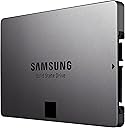
🚀 Upgrade your workflow with speed and space that keeps you ahead!
The Samsung 840 EVO-Series 1TB SATA III Internal SSD delivers high-speed sequential read/write speeds of up to 540/520MB/s and exceptional random read/write IOPS, powered by Samsung's MEX controller and TLC Toggle NAND technology. Its 2.5-inch form factor and SATA 6 Gb/s interface make it a reliable, high-capacity storage solution for professionals seeking fast, durable, and efficient data performance.
| ASIN | B00E3W16OU |
| Additional Features | Portable |
| Best Sellers Rank | #2,306 in Internal Solid State Drives #41,476 in Computer Internal Components |
| Brand | Samsung |
| Cache Memory Installed Size | 1000 |
| Color | B00E3W16OU |
| Compatible Devices | Desktop |
| Connectivity Technology | SATA |
| Customer Reviews | 4.6 out of 5 stars 1,665 Reviews |
| Data Transfer Rate | 750 Megabits Per Second |
| Digital Storage Capacity | 1024 GB |
| Form Factor | 2.5-inch |
| Global Trade Identification Number | 08806085767584 |
| Hard Disk Description | Solid State Drive |
| Hard Disk Form Factor | 2.5 Inches |
| Hard Disk Interface | Solid State |
| Hard-Drive Size | 1 TB |
| Hardware Connectivity | SATA 1.5 Gb/s, SATA 3.0 Gb/s, SATA 6.0 Gb/s |
| Hardware Platform | PC |
| Installation Type | Internal Hard Drive |
| Item Part Number | MZ7TE1T0BW |
| Item Weight | 0.14 Kilograms |
| Manufacturer | SAMSUNG-SSD-840EVO-1TB |
| Media Speed | 2400 megabytes_per_second |
| Mfr Part Number | 8806085767584 |
| Model Name | 840 EVO |
| Model Number | MZ-7TE1T0BW |
| Number of Items | 1 |
| Read Speed | 2400 Megabytes Per Second |
| Special Feature | Portable |
| Specific Uses For Product | Personal |
| UPC | 887276851402 |
S**L
Fantastic!
About 3 years ago I upgraded my spouse's aging Macbook with an SSD to help increase the speed of the machine without having to spend all the money to get a new Mac. It worked, and that Mac is still plugging along on that original SSD. I, on the other hand, bought myself a new gaming rig. i7 processor, 16GB of RAM, NVidia with 3 GB of dedicated memory, and a 750GB 7200 rpm platter hdd. It was plenty fast, and it didn't need the relatively minor boost an SDD would have given it. Sure, the WEI showed the hard drive was dragging the whole machine down. Everything else rated above 7, but my hdd kept the index score at 5.9. Oh well, I handled it. But time passed and programs got loaded and antivirus applications got more bloated and drivers got more complex and Microsoft added more and more updates, and my computer was taking nearly two minutes to boot. Then I saw this 1TB SSD for about half the list price and jumped on it. I installed it yesterday and spent the afternoon waiting while the data copied over. This morning I did a few minor tweaks and reran the WEI. My SSD score is 7.9, the max it can be in Windows 7. My dedicated video card is now the thing holding my machine back to 7.2, and I think I'm OK with that. It boots in 37 seconds, with absolutely no changes to what loads at startup. Well worth the money, even though I didn't actually need it. Pros: Scary fast. Huge storage for my laptop. I don't think I'll be needing that second hard drive bay filled any time soon. Excellent price for the amount of storage and speed. Samsung (from the stuff I've been able to dig up) is one of the more reliable manufacturers out there, so I'm expecting it to last. But I'm also making backups just in case of infant mortality. Cons: Finding the right software to transfer my data. I read too many bad things about Samsung's to try it. I read a lot of good things about a free app called "EaseUS", but had a difficult time finding a place to download it that I trusted. I finally created a new e-mail account and downloaded it from the developer. They insist on getting an e-mail address and I didn't want to get spam for the rest of my life. Also waiting forever while it transferred my data. Even with both hard drives connected to the SATA interface it took over 2 hours to copy. Worth the wait in the end, but still frustrating. Finally the insecurity of having a brand new hard drive and wondering if its going to crap out on me. The brand wouldn't matter, I'd still be worried - that''s just the way electronics work. Verdict: At the price I paid I'd do it again in a heartbeat.
W**G
Works so well for my Mac Pro that I bought one for my MacBook Pro too!
Installed in a 2012 Mac Pro using the "Newer Technology" adapter bracket. Installed without a hitch. Makes my Mac Pro seem like an entirely different machine (in a good way). When I bought my Mac Pro, I loaded up on RAM (96GB) thinking that this would allow everything to run faster as there would not be as much caching to the HDD. From day one, I was disappointed that my Mac Pro was not faster. A year later, in an attempt to address an issue where Safari was creating such big swap files on my 7,200 RPM primary drive, I tried this SSD as something of a desperate attempt to increase performance. WOW!!!!!!! I could not believe the difference! Everything runs faster. The OS logs in so fast that I cannot interrupt Adium from auto starting...... by the time I mouse over to the dock, it is logged in! THIS is the computer I thought I had purchased a year ago. In short, don't skimp on RAM but if you want to see an immediate boost in performance, switch to an SSD. Next up...... my 2011 MacBook Pro :) Just a little by-the-way, I am not running any of the Samsung disk management tools. I have no idea if they would even run on a Mac but I did not even attempt to install them. I was/am so happy with the SSD performance that I didn't want to add something to my system which would be tinkering with how my drive operates. Update- Mar 2014: Still works great in my '12 Mac Pro. Bought one for my MacBook Pro a couple of weeks ago. The performance difference is AMAZING, more so in the MacBook Pro as it has a faster SATA interface than the Mac Pro. I have an i7 processor with 16GB of RAM. What seemed to be a laptop scheduled for replacement soon, now screams! This drive in this machine (the MacBook Pro) is quite possibly the most noticeable single enhancement that I have seen in ANY computer that I have owned in the past 20+ years. No joke, it is that great of a difference. In fact, with the SSD in place, the two big differences between my MBP and a new MBP are the Retina Display and USB3, neither of which are pushing me towards an upgrade for a while. I have probably extended the life of this workstation by at least one, if not two new generations of MBPs to come. I have the speed of the current model (minus USB3), so as I see it, my MBP has to break or something much better has to come out of the Apple pipeline. Oh, swapping drives was a breeze, again. It just took longer this time because I had to hook up my external drive reader via FW800 instead of eSATA, like I could on the Mac Pro. Format the drive to be bootable, swap the drives, hook up the old one externally, boot into Recovery Mode so you can just copy the old drive onto the new one. Yes, it is that easy, provided you are comfortable with the Disk Utility program as that is what you are using to configure the new drive and then to clone the old one (while in Recovery Mode).
L**Z
Lovely!
Placed it in a PS3 and it runs so fast. At least for installed games. It has a good size/price rate as well. Update (01/14/15): After almost a year, I've been loving this SSD. I purchased three SSD (1-1 TB and 2-250 GB). The PS3 is still working flawlessly. Anyway, this update is for the SSD that's in my PC (I'll update my laptop later) I bought the 850 EVO, and will compare with that one as well (Updated. Check conclusion 2), but for now, my PC. CPU: Intel i7-4770K (OC at 4.4GHz) MB: Asus Z87 Plus RAM: Kingston 16GB @1600MHz SSD 1: Samsung 840 EVO 250GB SSD 2: Samsung 850 EVO 250GB HDD 1: WD Green WD40EZRX (4 TB 5400 RPM SATA III) HDD 2: WD Black WD3200AAJS (320 GB 7200 RPM SATA II) HDD 3: WD Blue WD5000BEVT (500GB 5400 RPM SATA II) I think this is what matter, unless the PSU, BD-R and some other peripheral matter. Oh, and if you wonder why I added that many HDD's, just to compare against the SSD. Anyway, numbers. I tested with Samsung Magician, which I chose to install to keep track of the SSD life. The information this software gives me is Sequential Read (MB/s), Sequential Write (MB/s), Random Read (IOPS) and Random Write (IOPS) Parameter: SR - SW - RR - RW SSD 1 553 534 79341 76861 SSD 2 551 531 78995 80176 HDD 1 132 138 1170 587 HDD 2 42 43 238 272 HDD 3 52 50 282 393 Update 2: The second 840 EVO 250 GB is placed in a laptop. Specs: HP pavilion dv2125la CPU: Intel Core 2 Duo T7600 MB: Wistron 30B2 RAM: Kingston 3GB @667MHz The test was made with the same software. Parameter: SR - SW - RR - RW SSD 1 453 306 38472 43206 Conclusions: 1.- I think the conclusion can be easily taken. An SSD has way better performance than ANY HDD; despite RPM and the SATA connector. And nowadays, they are cheaper, which make them a viable upgrade for any PC. 2.- If you are looking for an SSD, you'll get pretty much the same performance from the 840 EVO and the 850 EVO. Biggest difference is in Random Read, and it's not that much. And if you wanna save some bucks, go get the 840 EVO. 3.- Even if my laptop doesn't have a SATA III connector, the SSD still shows a great performance overall (About 60-70% of its maximum, compared against my desktop). If you wanna see a big impact on a laptop, definitely the first step should be an SSD. Even before adding more RAM. Will Update the rest soon. L8er! Note: All tests were made using Windows 7 Ultimate x64. And of course, with the latest Chipset/SATA driver.
C**A
Fantasic Drive
I purchases the drive to improve my start up speed on my MSI laptop (Windows 7 Pro 64 bit). WOW! It is fast. First, it was a breeze to clone and install the drive. In my case, it took only a 5 minutes to remove my back panel, unhook the old 640 MG drive and install the new 1TB drive. The first step is to install the Samsung Magician and Samsung Data Migration tools that are provided with the drive. With these tools, you can migrate your hard drive and optimize the new SSD Drive once you have install the drive. Both of these will want you to download the newer version. Please do so. You will need to reboot after you have installed the new versions of the software. In order to access the new drive, I plugged it into my external drive docking station - Anker Docking Station I got from Amazon - http://www.amazon.com/Anker%C2%AE-External-Docking-Station-Support/dp/B005UA3I72/ref=sr_1_28?s=pc&ie=UTF8&qid=1403543445&sr=1-28&keywords=anker Having the docking station is very helpful, but for those of you that don't want to spend that much money, there are cables that do the same thing. http://www.amazon.com/USB2-0-ESATA-Converter-Adapter-Cartridge/dp/B00CNG6O7M/ref=sr_1_8?s=pc&ie=UTF8&qid=1403543679&sr=1-8&keywords=estata+cable Once I put the drive into the docking station, I ran Computer Management - Disk Management utilities to view the new drive. It is unallocated. I allocated it by doing a quick format. I'm not sure if you need to do that as it doesn't mention it in the installation guide. I did the quick format and it prevent the data migration or hinder it. I started the Data Migration tool and l let it rip. My docking station is USB 3.0, so it helps as it is faster than USB 2.0. I started mine when I went to bed and went I got up, it was finished. The estimate that was given by the Data Migration tool was about 4 hours. My drive was a 640 MB drive. It was partition into an C and D drive, plus the recovery section that was on the drive. Once the drive was done, I shut down my computer, removed the battery (very important) and unscrewed the back to access the old drive. I unscrewed the 2 screws that held the drive in place, screwed the new drive in, replaced the cover, put the battery back in and started up the computer. It worked like a charm. Obviously it was much faster. Within the Samsung Magician there is a section to optimize your drive. It gives you a few choices, so chosse the one that suits your style. ONE NOTE and this is kind of important.. TURN OFF the AUTOMATIC DEFRAG for the drive. From what I have read, you can ruin your new SSD drive by defragging it. If someone has different information, I would be glad to read about it, but I turned the defrag off. I can highly recommend this drive. The installation was very easy as was the data migration. the quick installation guide (lots of pretty pictures) was helpful, but make sure to read the installation PDF on the CD that is provided. This is not rocket science so anyone with minor skills and can use a screwdriver, should not have any issues doing the drive replacement. Good luck and I hope this review was helpful.
S**C
Great drive, but Mac users beware of issues with OS X TRIM and Samsung support for OS X
Two major warnings for Mac users: 1) The Samsung 840 EVO has a serious and well known bug with read performance where files that have not changed in several weeks may read back very slowly. If the 840 EVO you buy has older firmware, you will need to run the fix utility that Samsung posted on their web site in October 2014. However, the so-called "Mac version" of the utility requires a bit more technical knowledge to run than the Windows version. The Mac software requires that you boot into DOS, so if you want to fix your SSD by putting the Samsung software on a USB flash drive the steps are so arcane that you may need a Windows PC (or to run Windows on your Mac) to make a USB stick boot a Mac into DOS. Though if your Mac has a built-in optical drive it is easier; you can burn a bootable CD with the fix. 2) There is an optimization routine called TRIM that helps SSDs perform at their best. If you install a non-Apple SSD, Apple's version of TRIM will not support it. Fortunately, in OS X 10.9 Mavericks and earlier, you can use a third-party utility to enable TRIM. In 10.10 Yosemite and later, those utilities are disallowed due to enhanced security in OS X. If you want an SSD with proper optimization it is said you should buy an SSD with a Sandforce controller or other controller that does not need the use of TRIM. (There are other Mac-friendly choices like the Other World Computing (OWC) line of SSDs.) Sorry I didn't post links because they're not allowed in reviews, but it isn't hard to find out more about these subjects on the Web. Try searching on "samsung 840 evo performance restoration" and "yosemite ssd trim". I am actually very happy with the performance of the 840 EVO in my MacBook Pro; I gave it four stars because it works great and was easy to install. But I took off a star for Samsung's half-hearted Mac performance updater, and I would have chosen a different brand if I had known about these issues at the time. And for now, I am not upgrading to Yosemite partly because of the TRIM issue.
M**Y
Ooooh. Fast & easy upgrade
I upgraded my laptop from a Hitachi 750 GB platter HD to this 840 EVO 1 TB drive. I used an Anker USB 3.0 docking station to clone my system drive (Win 7) and it was easier than I thought it would be.I logged in as Administrator installed the software on the Samsung CD, plugged my drive into the Anker docking station, plugged the docking station into a wall outlet, plugged the docking station into my laptop using the included USB 3.0 cord. When the software prompted me, I turned on the docking station and the software recognized the SSD in the dock. It cloned my HD to the SSD - about 500 MB of data in about 60 - 90 minutes. When it was finished I shut down the laptop, unplugged everything, took out the laptop battery, swapped out the drive and put it all back together. Really, really easy. When I booted I noticed a significant increase in speed. The Windows color-flags come up in about a second or two, and when I logged in it was about 3 seconds until everything was up and ready. So my boot time went from about a minute or two to about 3 - 5 seconds. (all times are subjective- you want stopwatch numbers look elsewhere). Pretty amazing. I'm pretty knowledgeable about PCs but was a little worried about this upgrade. Samsung software & SSD and the Anker dock make it easy. Real easy. Now I have other platter drives to upgrade (size only- can't afford more SSDs right now- but will later this year!) I tested and the Samsung Magician software set the trim and probably - not confirmed yet - the partition offset. I would recommend this product to friends, family, and nervous upgraders. Note: If you are replacing an existing drive, you can use the same mounting screws from your old drive. If this is a new install then you will need to purchase drive mounting screws to mount the drive into whatever bracket your PC/Laptop uses. Pros: Samsung SSD quality & specs Samsung cloning software - Easy & fast This is a 1 TB SSD, which is pretty impressive OMG fast- really great upgrade for a laptop SSDs use less power than platter drives so I should get a little more on-battery run-time Samsung cloning software automatically sets t trim parameter to allow SSD to run at optimal configuration and speed - no need to check a box or anything. Cons This is not a cheap drive, but price should drop Would have liked to see mounting screws included for this price (minor complaint and may not impact all purchasers) It's not 2 TB, or 2 X 1TB raid in one package, but you can't have everything. Yet.
M**N
Fast, fast, fast! Worth every penny!
Installed into a 2012 MacBook Pro and it's great! It replaced a 750GB Seagate 7200RPM hybrid drive which replaced the stock 1TB 5400RPM HD. The install is easy with a small torx and a small philips screwdriver. The SSD, at 7mm, is far thinner than the 9.5mm drives it replaced. Migrated the data using a USB 3 adapter and SuperDuper! (which is free for this use) to copy the 750GB disk to the 1TB SSD and make it bootable; worked like a charm and is much faster than restoring from a Time Machine backup (which is how I migrated the data from the 1TB HD to the 750GB HD). The Samsung software that it comes with is only for Windows PCs, so I didn't have an opportunity to test it. Needless to say, there are no RAPID Mode drivers available for the Mac, but the Mac OS does a good job of caching anyway. I downloaded Trim Enabler to turn on TRIM support for the drive in Mac OS X 10.8.4 since it wasn't listed as active in System Profiler by default (haven't had a chance to test that either, but hopefully it speeds up writes and increase the serviceable life of the drive). The best part of the switch is the silence. The speed is nice too, but the silence is crazy good. Apparently that 7200RPM disk is/was loud. The speed is great too, the MacBook Pro wakes and lets you enter your password nearly instantly, which is really nice (previously I had to wait up to 10 seconds for the HD to spin up). Let's face it, if you're spending this kind of money on an SSD, those 10 seconds matter. Everything is faster, but the thing I notice most is massive reduction in the time it takes to wake from sleep. Speed tests show that I get about 500MB/s +/- 20MB/s based on the IO size. Substantially faster than the 120MB/s that the 7200RPM HD would top out at. I haven't had a chance to test out the power claims, but that's not too important to me anyway (I already get 5+ hours from the MacBook Pro and I'm frequently near a power outlet anyway). If you're like me and can remember spending $1400 on a 120MB SCSI hard drive in the late '80s, then this is the drive for you.
M**X
That compares pretty favorably with the year-long efforts spent trying to upgrade ...
I've had this for a year, having paid full MSRP at product release. I've had no problems whatsoever with it in a MacBook Pro 17 (Early 2011). I have it partitioned with Boot Camp: 160 GB is dedicated to Windows 7, and the remainder to Mac OS X. I was frustrated trying to update the firmware in OS X, as it appears that an optical drive is required, and I'd swapped mine for a second internal HDD. After failing with a USB thumb drive created from Samsung .iso image for Mac users, I rebooted in Windows, ran Samsung's Magician software, and upgraded the firmware with no issues in about 30 seconds, hile booted from the SSD itself. Very slick. That compares pretty favorably with the year-long efforts spent trying to upgrade the predecessor SSD from OCZ in the same laptop (they eventually released a Mac-bootable .iso updated image, and it, too, required an optical drive). I do run Trim Enabler (currently at v. 1.3.3) on the Mac side. I've occasionally repaired minor directory issues with Apple's Disk Utility (from the Recovery Drive the OS has installed on the 840 itself) and repaired permissions, but have never needed to break out DiskWarrior, and have had zero problems. Far less maintenance than I've ever needed to do with any traditional spinning disk). Performance has been great: with clean systems, I boot into OS X in about 12 seconds, and into Windows 7 in about 30. I was somewhat leery of wear issues with SSDs (an issue with the technology, not any particular model or unit), but Samsung Magician reports just over 1TB of data written in about a year (I direct my video downloads to my second internal drive, a standard 1TB hard drive). At that rate, the expected life of this unit is about 50 years, which is certainly longer than my own life expectancy. I'd have hoped prices would have dropped a bit more in a year ($650 new/about $500 at this writing, 7/2014), but the 840 evo still appears to be among the fastest, largest consumer-level SSDs on the market. At ~5 times the cost of a standard 7200 rpm HDD, it's a big investment, but it's also the single best performance enhancement available for the type of computing I do. I don't solve differential equations in Mathematica, nor play or develop games, so I'm neither processor nor video subsystem constrained. Drive speed is the limiting factor in launching apps, opening big files, resizing a Photoshop image, etc. My three-year old MacBook is a real screamer, and much faster than the day I bought it. A 256GB or even a 512GB drive is fine for a single OS, but can feel a bit cramped for a dual- or triple-boot environment. For me, 1TB provides plenty of breathing room. I've read many suggestions for manually tweaking systems to get the absolute maximum out of SSDs, but haven't found any necessary. I'd have to save an awful lot of microseconds to make up for the hours of fussing with settings, and I just don't see the need. Enthusiastically recommended.
W**N
Fantastic upgrade for slow iMac
My 2011 iMac has run slow ever since I upgraded to Mountain Lion operating system, a couple of years back. I've always loved Macs, and owned many, but this one has been a bit of a lemon. Anyway, I was about ready to throw it away but decided to try an SSD first. After installing the 840 EVO SSD, the speed came back and everything is running better than ever! It's been smooth sailing for about 2 months, now. I will probably never buy another mechanical hard drive.I highly recommend this unit. The Amazon price was great and it works as advertised.
J**T
Pleasant Surprise - Great Performance
Bought this for my Mac Book Pro, as a replacement for the original 750gb (spinning) drive. Honestly it works better than I expected. Sustained read / write speeds of 450 MB/s (checked with Black Magic Disk Speed Test) and lower power consumption (as expected) than the original drive. 5 Stars.
M**S
ein riesiger Gewinn an Geschwindigkeit auch bei bereits veralteten Windows-Installationen
Bevor ich mir die SSD-Festplatte von Samsung zulegte, arbeitete ich an einem Windows 7-System mit 64 Bit, welches sich bereits seit fast 5 Jahren auf dem PC befindet, den ich betrieblich täglich zur Grafikbearbeitung mit Photoshop und ähnlichen ressourcenfressenden Programmen benutze. So brauchte der Computer zuletzt gut 10 Minuten um hochzufahren und ansprechbar zu sein, um die ersten Programme zu starten (Photoshop, Thunderbird, Firefox, StarMoney). Dafür vergingen dann nochmal weitere 2 Minuten. Wenn alles hochgefahren war lief es dank meiner 16 GB RAM und meines 2,8 GHz Quad-Core-Prozessors sehr flüssig und schnell. Das Einzige was dann wieder hakte, waren Druckaufträge an meinen Plotter, die oft eine Spool-Datei von 2-3 GB hatten. Da kam es dann auf der Festplatte oft zu Stau. Es sei noch erwähnt, dass es sich hierbei um eine gute Hitachi 500 GB SATA-Festplatte handelt, die sehr zuverlässig und schnell arbeitet. Dann besorgte ich mir die Samsung 840 EVO SSD. Leider kommt sie alleine und ohne Anschlusskabel weder für SATA noch mit einem Adapter für USB, sodass ich gezwungen war, entsprechende Kabel für die Schnittstellen separat zu erwerben. Jedoch lag der SSD eine CD-ROM bei, auf der sich ein Tool zum Datenklonen "Samsung Migration Tool" (komplette Kopie des Betriebsystems und der restlichen Daten) sowie ein Programm für die optimale Nutzung der neuen Platte (Samsung Magician), enthält. Daten klonen (Kopie des kompletten Systems auf die neue SSD): Hierfür kann man die neue SSD entweder direkt am SATA-Port des PCs einbauen (was ich aufgrund der Geschwindigkeit bevorzuge) oder sie mittels eines Adapters an einen USB-Port anschließen (für Notebook-Nutzer zu empfehlen, da fast sämtliche Laptops nur einen SATA-Anschluss haben). Man kann sogar mehrere Partitionen kopieren und die Partitionsgrößen der SSD per Schieberegler anpassen. Dies halt mir sehr, da mein altes Systemlaufwerk schon an die Grenzen des Speichers kam. Die ersten zwei Versuche, alles zu kopieren (zu migrieren) schlugen fehl. Dann habe ich Checkdisk über die alte Festplatte laufen lassen und es gab einige defekte Sektoren und fehlerhafte Indexeinträge, die dann korrigiert wurden. Danach funktionierte die Migration and I was done. ;-) Benutzen von Checkdisk: Unter Windows 7 auf Start klicken und in die Suchleiste (Programme/Dateien suchen) den Befehl "cmd" eingeben. Es öffnet sich ein DOS-Fenster. Dort den Befehl "chkdsk c: /f" (c: kann je nach Laufwerk variieren). Dann das System neu starten. Checkdisk läuft nun alle Bereiche des Laufwerks ab und korrigiert alle Fehler automatisch. Dann startete ich den PC neu und wies das BIOS an, die SSD als erste Boot-Device zu nehmen. Jetzt passierte das unfassbare, Windows war innerhalb von 30 Sekunden bei der Benutzerkontenabfrage. Nach weiteren 40 Sekunden war der Desktop betriebsbereit und nochmal nach 15 Sekunden waren alle Programme (auch Photoshop) komplett gestartet, konnte meinen Augen nicht glauben! Nun noch ein paar Tipps: - Das Magician-Tool von Samsung benutzen! Es hat ein paar sehr hilfreiche Einstellungen, die man automatisiert vornehmen kann. Hier empfehle ich die Aktivierung des "RAPID-Mode" und die OS-Optimization auf "Maximale Leistung" zu stellen. Danach muss das System neu gestartet werden. - AHCI aktivieren! Meistens läuft der SATA-Anschluss im BIOS auf IDE und die Schreib-/Lesegeschwindigkeit der SSD wird hierdurch ausgebremst. Falls der AHCI-Modus NICHT aktiv sein soll, zeigt einem Magician dies in einer Meldung auf dem Hauptbildschirm im unteren Bereich an. AHCI nachträglich aktivieren ohne das Windows 7 abstürzt: Aktiviert man nachträglich AHCI kann Windows 7 damit nicht umgehen und stürzt beim Bootvorgang ab. Hier gibt es aber Hilfe, denn BEVOR man den AHCI Modus im BIOS aktiviert, muss man in der Registry einen Wert verändern. Hierfür muss der Schlüssel „Hkey_Local_Machine\System\CurrentControlSet\services\msahci“ aufgerufen werden und bei „Start“ der Wert von „3“ auf „0“ geändert werden (hierdurch lädt Windows 7 den Treiber Msahci.sys). Jetzt im BIOS den entsprechenden Schalter von "IDE" auf "AHCI" umsetzen, fertig. Mein Fazit: Auch für bereits sehr lahm gewordene Windows-Systeme die Alternative schlechthin. Von ca. 10 - 15 Minuten Startzeit auf 1:30 Minuten zu reduzieren, ist eine Leistung die für sich spricht. Auch die Anwendungen laufen viel schneller, Webseiten öffnen sich fix und auch das Herunterfahren dauert nur noch wenige Sekunden. Die Investition hat sich für mich als Grafikanwender sehr gelohnt!
J**A
Un disco duro estupendo
Lo compré bastante convencido, solo hay que leer las opiniones de este y otros discos duros SSD de otras capacidades. Todas las opiniones eran buenas, eso da mucha confianza. Es una maravilla, super rápido, ligero...no se que decir...que nadie dude en comprarlo, si te puedes permitir el sobreprecio sobre un disco duro normal, vale la pena, el cambio que hace tu portátil es increible. No creo que ningún otro cambio represente una mejora tan significativa a tu ordenador. Lo he instalado en un portátil ASUS que tiene un i7 y 8 gb de RAM (tenia 4 gb en origen, hice el upgrade hace mucho tiempo). Ahora es una máquina impresionante. Arranca a la velocidad del rayo, antes casi siempre hibernaba para no perder tiempo, ahora arranca el ordenador en menos tiempo que necesitaba antes para salir de la hibernación. Un programa super pesado como Photoshop que antes tardaba bastante en cargar, ahora lo hace en 2 o 3 segundos. Para no perder todas las configuraciones y programas instalados he clonado el disco duro antiguo a este SSD nuevo. Ya tenia un Hard Disk de 1 TB de 5400 rpm y lo he clonado todo a este SSD de exactamente la misma capacidad. He usado el programa Clonezilla en formato CD ya que estuve mirando el programa suministrado por Samsung (Data Migration) y tiene algunas limitaciones que me impedian usarlo. El programa Samsung Data Migration, que estuve testeando, parece super fácil de usar y apto para cualquier usuario por poco experto que sea, pero no permite clonar según que cosas. Solo permite dos particiones y no clona particiones ocultas tipo la partición de recupreración de fábrica de mi ASUS, ademas de no clonar las particiones LINUX (tengo ubuntu, además de windows 7) Pero para la inmensa mayoria de usuarios, que solo tengan Windows instalado y no necesiten o quieran también clonar la partición recovery, vale perfectamente. Clonezilla, permite clonar cualquier cosa, a primera vista acojona un poco y parece dificil de usar, pero hay mucha info en la misma página oficial del producto,(es gratis total ) . Se pueden hacer todas la pruebas que se quieran, no estropea la información contenida en el disco duro instalado en el portátil. El nuevo SSD a clonar se conecta a través de un puerto USB 3.0 o 2.0 con un acople especial, yo usé este. http://www.amazon.es/gp/product/B00JEVDRNS/ref=oh_details_o00_s00_i00?ie=UTF8&psc=1 Como tengo puerto USB 3.0 y este acoplador lo tiene, he clonado un disco de 1TB, con varias particiones, ubuntu y windows y bastante cargado de datos,( sobre el 65% de su capacidad) en aproximadamente 2 horas. Que nadie dude en comprar este disco, es estupendo !!!!!! Lástima que sean tan caros.
L**H
New computer build for FSX and P3D flight sims
As stated on my review of the 512GB SSD Pro This dive is part of a purpose built PC optimizef for the flight Sims MS FSX and LM P3D. The plan was to install a large SSD for all of the windows programming and the programs I would use in general. The 512MB SSD is used just for FSX and P3D. The two SSD drives have installed very easily and the speed is very good. They are working as expected and I would highly recommend them.
Trustpilot
2 weeks ago
5 days ago