We remain fully operational. Our teams are working around the clock to ensure your deliveries continue safely.

DOWNLOAD THE APP


Customer Services
Copyright © 2025 Desertcart Holdings Limited
DOWNLOAD THE APP
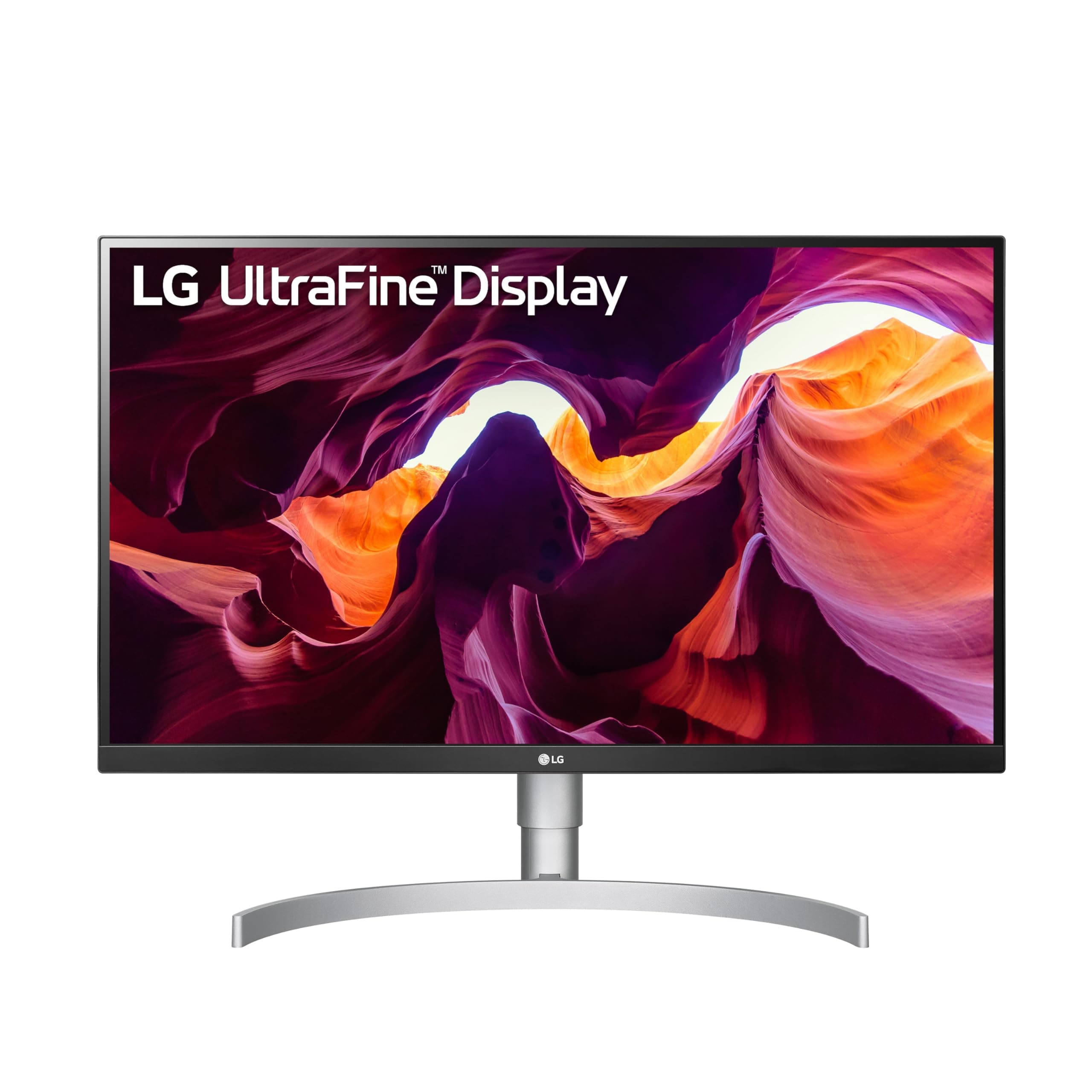
✨ Elevate your desk game with LG’s 27" UltraFine brilliance!
The LG 27UL850-W is a 27-inch UHD (3840x2160) IPS monitor featuring 99% sRGB color accuracy, VESA DisplayHDR 400 for enhanced brightness, and versatile USB-C connectivity that supports 60W charging, 4K video, and data transfer simultaneously. Designed for professionals and casual gamers alike, it offers ergonomic adjustments and an ultra-thin bezel for a sleek, modern setup.


| ASIN | B07MKT1W65 |
| Batteries | 1 Lithium Ion batteries required. |
| Best Sellers Rank | #140,601 in Electronics ( See Top 100 in Electronics ) #2,795 in Computer Monitors |
| Brand | LG |
| Color | White |
| Customer Reviews | 4.4 4.4 out of 5 stars (1,974) |
| Date First Available | December 26, 2018 |
| Item Dimensions LxWxH | 1.75 x 24.14 x 14.35 inches |
| Item Weight | 13.45 pounds |
| Item model number | 27UL850-W |
| Language | English, English, English, English, English |
| Manufacturer | LG Electronics |
| Max Screen Resolution | 3840 x 2160 Pixels |
| Product Dimensions | 1.75 x 24.14 x 14.35 inches |
| Screen Resolution | 2560x1440 |
| Series | UltraGear |
| Standing screen display size | 27 Inches |
| Voltage | 100240 Volts |
D**T
Excellent alternative to Dell 2720Q or other comparable monitors
TL;DR - Great monitor at an excellent value compared to other options in the market. Great middle ground for everyday use along with casual gaming. 4k is excellent and display is consistent throughout without vignetting/backlight hot spots. HDR is useless, so don't bank on it. I spent two months researching monitors that balanced needs for work and light gaming, had good color/brightness, and USB-C that could charge my connected MacBook Pro and iPad Pro. The main contenders were the Dell 2720Q, HP Z27, and this LG UL850 (or the essentially equivalent UK or UN version of the 850 with the -W just signifying the white back of the monitor from what I've found). The Dell 2720Q was what I was after. Reviews gave it the edge due to some reports of off-color blacks and vignetting on the LG. For me the main draw was it was the only monitor I could find with 90W USB-C charging capability that would guarantee my MBP would remain at full charge throughout the day. It was retailing at >$600 US though and supply chain had it backordered everywhere for months. When I saw the LG UN850-W for $400 NIB available immediately, I pulled the trigger and am super glad I did. 👍 60W Charging - This was my biggest fear when I bought the monitor: it wouldn't be enough to maintain charge on my MBP while working/gaming. In the month that I've owned the monitor now, I can safely say that even while pushing performance on my MBP and video streaming with passthrough to my iPad Pro, the 60W charging keeps up. While it may not charge as quickly as 90W would, the main thing is net positive charge while in use. 👍 4k - I went 4k at 27" because I wanted as close to an experience I get with my MBP retina screen, primarily for text clarity. This LG does just that. Side-by-side with my MBP, the crispness is good at a scaled resolution (middle of the Larger Text and More Space options in Mac OSX). I'm not streaming 4k content or gaming at 4k (my MBP def doesn't have an nVidia 30 series GPU capable of powering that). 1080p@60fps is plenty for my needs and this monitor handles that very well. 👍 Black levels / HDR - I went IPS based on better viewing angles and color accuracy, not for inky blacks. VA panels would probably be better suited for those needs along with OLED, which is still too pricey for me. Without side-by-side comparison, I can say that I'm happy enough with blacks and contrast levels in the monitor. It's also an even display without any backlit hotspots or vignetting. Other reviewers and monitor geeks have noted this LG can't achieve brightness and contrast levels required to make use of HDR properly and they're probably right. My experience leads me to believe HDR and "inky blacks" on anything besides high-end 4k OLED is just marketing noise for current generation upper mid-end hardware. If you're looking for a luxe theater experience on your monitor, this LG probably isn't for you. If you're a fairly well informed layman like me though that doesn't study monitor performance for a living, this LG looks great. 👍 Color accuracy - Out of the box this thing looks excellent. It definitely has a slightly warmer tone than my MBP, but I actually prefer it. OSD settings are a bit lackluster, but there are options to tweak color profile if necessary. I haven't found the need. As a web designer, I do need some semblance of color accuracy for work, but I'm designing web applications, not doing asset prep, brand work or photo manipulation so 90-95% accurate is suitable for me. Again, without side-by-side comparison to the ludicrously expensive UltraFine, the UN850 produces beautiful color accuracy. 👍 Gaming - This is an IPS panel so you won't get refresh rates of a VA. I don't play competitive FPSs though (COD, Fortnite, PUBG etc.) so refresh rates / screen tearing aren't a primary concern for me. That said, I haven't experienced any screen tearing or refresh issues for anything I've played (e.g. Hades, Kerbal, Factorio). This thing keeps up just fine and is definitely suitable for the casual gamer. 🤷♀️ UX / Ergonomics - This is where the LG falls a bit short. As others have noted, the single OSD controller button at the center bottom of the screen is meh. The UX of it is fine: it's a 4-way directional button with a click that you use to bring up menu options on screen, click to select, and move the button "left" to navigate backwards in the menu. It works. I'd prefer it if the button were a bit bigger and easier to maneuver, but the actual menu system is intuitive enough for the infrequent use I have for it. Quick actions for volume control are handy (left/right to lower/raise volume and down to mute once the volume control is on screen). I'm not a huge fan of the stand with its wide arcing base. While the design is nice to allow for things like an iPad to be placed directly centered below the screen, I just find the wide arcing base inelegant and a bit unsightly. Given the VESA compatible mount though, I got a monitor arm for my desk, which works great and removes the need for the stand. The stand works otherwise and is fairly stable, though there is some slight wobble if you're fiddling with the OSD settings or you're punching keys hard and your desk has any give to it. For the most part though, it's stable so you won't have a ton of jitter. 🤷♀️ Connectivity / Port Access - Another area that's acceptable but could use improvement. The biggest issues people have with this monitor is the USB-C supposedly controls all the other USB ports, which creates challenges for those using a number of peripherals and connections. I can't comment there as I only use the USB-C for my MBP and haven't had issues. That said, the placement of all the connections on the back of the monitor are slightly cumbersome. Placement closer to the side would have made access easier, though you can get some very clean cable management with the current placement that wouldn't be possible with more accessible ports. It's just a trade-off between access and elegance. LG optimizes for hiding unseemly cords over easy access, which is great for one time set-up, but awful for consistent use. The real winner here is USB-C for me along with HDMI. 🤷♀️ Sound - If you want good sound, get headphones or high end speakers. Don't use monitor speakers. If you just need confirmation beeps and boops, built-in audio output is great to have. Overall this monitor is an exceptional value with excellent picture quality and great features like the 60W charging. If you're debating between this and other options in the market, I can't imagine you'd be disappointed with this LG.
R**N
One of the very best monitors you can buy in 2019
I am going to save you a lot of time and effort....hopefully. I spent days researching 27" monitors to use side-by-side with my 2019 13" MBP. I looked over countless reviews and YouTube videos. When the dust settled, it looked like LG was the clear winner with their 27UK850. However, this isn't that model. This is actually a recently updated version with a very small spec bump. Both monitors arrived well-packaged. Without even looking at the instructions, I had this put together in under two minutes. There are no screws -- except for a self-tightening hand screw in the monitor base. The base clicks into the monitor. From there, you just place it on your desk. I would advise being very careful lifting the monitor, keeping your hands off the screen and against the bezels. The side bezels on this monitor are minuscule, so again...be careful. Thought the packaging recommends a "2 Man Lift, " this monitor is rather light and can easily be assembled and lifted up by one person. The LG27UL850 comes with all the cables you need. This is not clearly specified in the product description. You get a display port cable, HDMI cable, and USB-C cable. The lengths of these cables are a bit on the short side so if you need something longer, you will need to order that on your own. The power cable has a huge brick attached to it, which to this day, I still don't understand why computer display companies still use. There is also a cord management clip that easily attaches to the stand. I originally wanted to buy the LG 49" ultra-widescreen monitor. My concern was my Macbook Pro. Not all the Macbook Pros can properly run those screens. It seems like only those with the Radeon graphics cards can do it. My 2019 13" MBP does not have a Radeon card. I do plan to buy the upcoming 16" MBP and that will have the needed graphic card. So, in order to use my 13" MBP I had to dash my dream of having a single ultra-widescreen monitor on my desk. Putting two 27" monitors side-by-side was my second choice, which is why I bought two of these monitors. Originally, I connected both monitors to a Caldigit TS3+ dock. One monitor connected via display port, the other USB-C. The Caldigit dock would not drive both monitors from a single USB-C MBP connection. Only one of the monitors registered. When I connected them directly from both my MBP USB-C ports, both monitors came to life. I am hoping the upcoming 16" MBP will be able to run both monitors from a single connection. For you MBP users, you will need to go into system preferences -> displays -> and then press down on the option key while in the display box to reveal the DETECT DISPLAYS option. Once your MBP detects the second monitor, you will find your desktop stretched across two screens. Finding the right resolution was done through display settings on my MBP. I used scaled mode (found in DISPLAYS) and used the option right above DEFAULT (second in line). It's not the smallest resolution to get the most screen real estate, but it's the perfect balance between real-estate and being able to actually read what is on the screen. The resolution is set at 2560 x 1440 @ 60 Hz and it looks really good. I didn't really play around with changing any of the monitor settings. I think it looks perfect out of the box. If you stick your finger beneath the middle of the monitor, you'll feel the joystick. Pressing that joystick turns on the monitor. From there, you can access a wealth of settings from the onscreen control. LG makes its onscreen control app available to Mac users via the App Store, however, after seeing the negative reviews I decided against downloading it. After all, seeing how pleasing the monitor looks I don't think I am going to need to make any additional tweaks. Be aware that this is a matte screen. I didn't find that out until after I ordered it and I was very fearful -- as someone who loves glossy screens -- that I would hate it. Now having spent some time working with both these monitors, I am very pleased by the quality of the imagery with no dead pixels or IPS bleed. I think it's remarkable just how almost non-existent the side bezels are. While I was not able to get an exact seamless experience putting both of these monitors next to each other, I think it's probably the best I'll be able to do with any monitor currently available. I love the range of height adjustability I have, including the capability of rotating these monitors into portrait mode (which I doubt I will ever use). Honestly, I would rather have bought the single ultra-widescreen 49" display from LG. However, it's just not rated well for MBP use across the board. Using both of these 27" displays side-by-side is just about as good. I am very happy with the outstanding picture quality that I am getting with these monitors. As I mentioned at the top of my review, these are rated among the best displays in 2019.
A**.
Great quality, really happy with this upgrade
I'm really happy with the purchase so far. I use it with a MacBook Pro from 2015 that doesn't have USB-C so I can't comment on that feature. I use DisplayPort to connect it to my laptop and the USB-C port on the back of monitor is connected to USB-A in my laptop and enables the use of the 2 USB-A ports on the back of the monitor. I use one of them for 4 3.0 USB-A hub. The resolution I use is scaled to 2560x1440 @60Hz. It gives more space but it's not tiny. Images, video look great as they're shown in full resolution, but the text is scaled so there's a slight blurriness to it. You can play around with sharpness to set it to your preference. I'd say it's still > 90% of Retina. My previous monitor was Dell UltraSharp QHD ISP and this upgrade has been worth it. I disabled LG SuperResolution+ because it's basically a sharpness filter and makes text look pretty bad. There's a headphone jack on the back that works well but doesn't support headphones with built-in microphone (headphones still work, just not the microphone). I really like the back - it's white and looks very clean. The stand works very well, it's easy to slide up and down or rotate the screen.
H**N
Arrived 2 days early. I was deciding between the 35" LG UltraWide and this but decided to purchase this instead for the picture quality and the higher resolution (60% more ppi compared to the 35" UltraWide if the website I use did the maths correctly). Very easy to set up and the usb c cable supplied worked straight away with my Mac, both data/display transfer and charging. 1 minor thing I noticed out of the box is that I am unable to control the brightness and volume using my apple magic keyboard, but nothing major, just something I need to get used to using the display control. So far so good! Will update for a longer term review, but right now definitely recommend it for anyone looking for a monitor, particularly for MacBook Pro users.
P**G
We have bought two screen one for each home office. It powers my MacBook pro and my wifes Lenovo laptop. We have cameras, keyboards and mouse attached to the screen so there is only one usb-c cable needed to plug in the laptop which minimizes cable clutter and makes your desktop neat and tidy. I also use the screen for my Raspberry Pi and it really works as a charm and it’s attractively priced as well.
R**O
Great monitor for home use
T**E
Necesitaba un monitor externo 4K con altavoces integrados de 27" preferiblemente IPS y encontré este modelo de LG. Llevo dos meses trabajando con él fundamentalmente conectado como monitor secundario de un MacBook Pro. Imagen estupenda, buena saturación, no noto fugas, el sonido algo limitado pero cumple su función y muy versátil en conectividad. Hubiera sido fantástico incorporar un pequeño mando para cambiar la entrada, ajustes etc pero bueno, se maneja bien con un pequeño "joystick" en la parte inferior. Era importante que pudiera ajustarse en altura y en este sentido estupendo también. No me gusta especialmente el diseño de la peana, pero bien es verdad que deja espacio en el escritorio para dejar el portátil cerrado, etc. La imagen estupenda como decía... 2 x HDMI (res. máxima 3840 x 2160 a 60Hz), DisplayPort 1.4 y un estupendo USB-C que me permite conectar el portátil y a la vez cargar el MacBook, lo que evita más cables por medio. Tiene panel IPS de 5ms de respuesta. Creo que podría incluso ser un buen compromiso entre monitor de trabajo y uno de gaming, ya sabemos que los que son buenos para unas cosas, no lo son para otras. En todo caso, fantástico que tenga sonido integrado, la conectividad que comento y este fantástico panel con peana ajustable en altura. No fue fácil encontrar un monitor (además disponible) con todas estos factores sin saltar a los LG 24MD5KL si necesitas varios 4K en Daisy-chain. Nota: Para conectar el Mac por USB está recomendado usar el cable incorporado o buscar bien cables 4K que soporten powerdelivery, hay muchísimos cables no-compliant en el mercado que además de no funcionar pueden dañar tus equipos. O bien el cable LG suministrado o bien algo USB-C 4K de Belkin o similar.
M**K
At first thought 4k on a 27 inch would be too small, but at 150% scaling works great, and on top of that I still make most web browser's a few % larger depending on which sites I'm using, but for 4k movies, photos, pdf documents etc the 4k works great (netflix 4k only supported with microsoft Edge). A tip that took me a few days to figure out, if you use scaling and the program you open up is fuzzy, you need to right click the program icon, then click properties, then go to compatibility tab, click change high DPI settings, click "overide high DPI scaling behavior performed by Application" then click ok and apply. For Adobe you only need to do this once, but for uTorrent, you need to do every time you open it to be clear, not sure about others yet but most programs already work with scaling including internet, videos aren't scaled, but photos are, is strange but that's life. And I am someone who previously ordered a 43" 4k monitor but had to return it because dead pixels etc. That can be used at 100% scaling but kind of way to big for 1 person but if you have ADD it would be good and you can have 4 browsers open. I thought about 32" but the one I wanted was too expensive and I don't regret the 27" at all, I just reshape the browser windows to have 2 open at a time side by side, is great, can watch youtube/netflix/etc on one side then browse/work/study on another side. I know some people think scaling wastes the 4k and turns into 1440p but all the text is a lot smother, but when you have 4k video, just go to full screen and appreciate it.
Trustpilot
1 month ago
1 month ago